Getting started with the OpenShift CLI
Install and configure the OpenShift CLI (oc) to manage OpenShift Container Platform clusters and deploy applications directly from a terminal.
About the OpenShift CLI
With the OpenShift CLI (oc), you can create applications and manage OpenShift Container Platform projects from a terminal.
The OpenShift CLI is ideal in the following situations:
- Working directly with project source code.
- Scripting OpenShift Container Platform operations
- Managing projects while restricted by bandwidth resources and the web console is unavailable.
Installing the OpenShift CLI
To interact with a OpenShift Container Platform cluster from the terminal, install the OpenShift CLI (oc). Depending on your operating system, you can install oc by downloading the binary from the Customer Portal or OpenShift Container Platform web console, by using an RPM, or by using Homebrew.
Installing the OpenShift CLI by downloading the binary from the Customer Portal
You can download the OpenShift CLI (oc) from the Customer Portal and install it to interact with OpenShift Container Platform clusters from a terminal on Linux, Windows, or macOS.
Installing the OpenShift CLI on Linux
To manage your cluster and deploy applications from the command line on Linux, install the OpenShift CLI (oc) binary. You can download the OpenShift CLI (oc) from the Red Customer Portal.
If you installed an earlier version of oc, you cannot use it to complete all of the commands in OpenShift Container Platform.
Download and install the new version of oc.
Procedure
-
Navigate to the Download OpenShift Container Platform page on the Red Hat Customer Portal.
-
Select the architecture from the Product Variant list.
-
Select the appropriate version from the Version list.
-
Click Download Now next to the OpenShift v4.22 Linux Clients entry and save the file.
-
Unpack the archive:
$ tar xvf <file> -
Place the
ocbinary in a directory that is on yourPATH. To check yourPATH, run the following command:$ echo $PATH
Verification
- After you install the OpenShift CLI, it is available using the
occommand:$ oc <command>
Installing the OpenShift CLI on Windows
To manage your cluster and deploy applications from the command line on Windows, install the OpenShift CLI (oc) binary. You can download the OpenShift CLI (oc) from the Red Customer Portal.
If you installed an earlier version of oc, you cannot use it to complete all of the commands in OpenShift Container Platform.
Download and install the new version of oc.
Procedure
-
Navigate to the Download OpenShift Container Platform page on the Red Hat Customer Portal.
-
Select the appropriate version from the Version list.
-
Click Download Now next to the OpenShift v4.22 Windows Client entry and save the file.
-
Extract the archive with a ZIP program.
-
Move the
ocbinary to a directory that is on yourPATHvariable. To check yourPATHvariable, open the Command Prompt and run the following command:C:\> path
Verification
- After you install the OpenShift CLI, it is available using the
occommand:C:\> oc <command>
Installing the OpenShift CLI on macOS
To manage your cluster and deploy applications from the command line on macOS, install the OpenShift CLI (oc) binary. You can download the OpenShift CLI (oc) from the Red Customer Portal.
If you installed an earlier version of oc, you cannot use it to complete all of the commands in OpenShift Container Platform.
Download and install the new version of oc.
Procedure
-
Navigate to the Download OpenShift Container Platform page on the Red Hat Customer Portal.
-
Select the architecture from the Product Variant list.
-
Select the appropriate version from the Version list.
-
Click Download Now next to the OpenShift v4.22 macOS Clients entry and save the file.
noteFor macOS arm64, choose the OpenShift v4.22 macOS arm64 Client entry.
-
Extract the archive.
-
Move the
ocbinary to a directory on yourPATHvariable. To check yourPATHvariable, open a terminal and run the following command:$ echo $PATH
Verification
- Verify your installation by using an
occommand:$ oc <command>
Installing the OpenShift CLI by downloading the binary from the web console
You can download the OpenShift CLI (oc) from the web OpenShift Container Platform console and install it to interact with OpenShift Container Platform clusters from a terminal on Linux, Windows, or macOS.
If you installed an earlier version of oc, you cannot use it to complete all of the commands in OpenShift Container Platform 4.22. Download and install the new version of oc.
Installing the OpenShift CLI on Linux using the web console
To manage your cluster and deploy applications from the command line on Linux, install the OpenShift CLI (oc) binary. You can download the OpenShift CLI (oc) from the web console.
Procedure
-
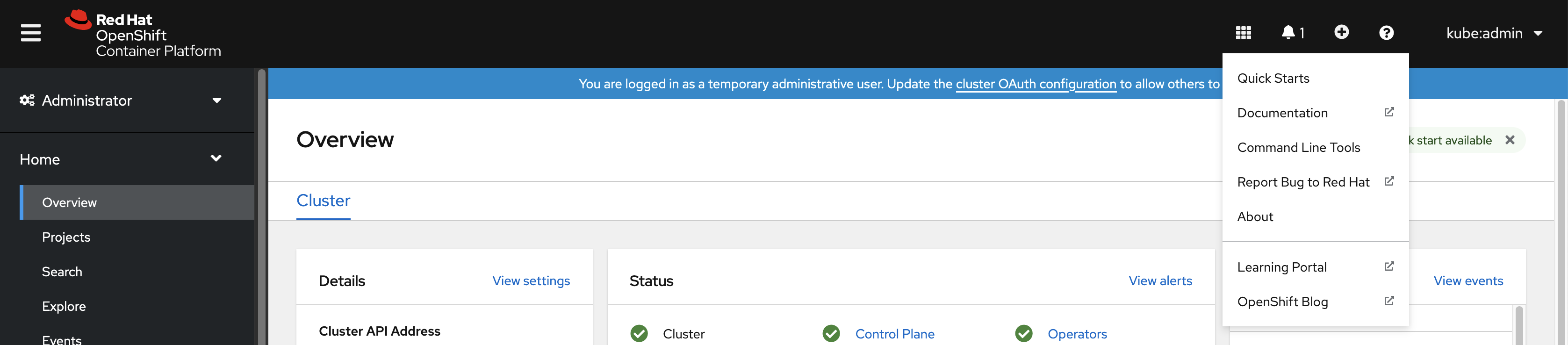
From the web console, click ?.
-
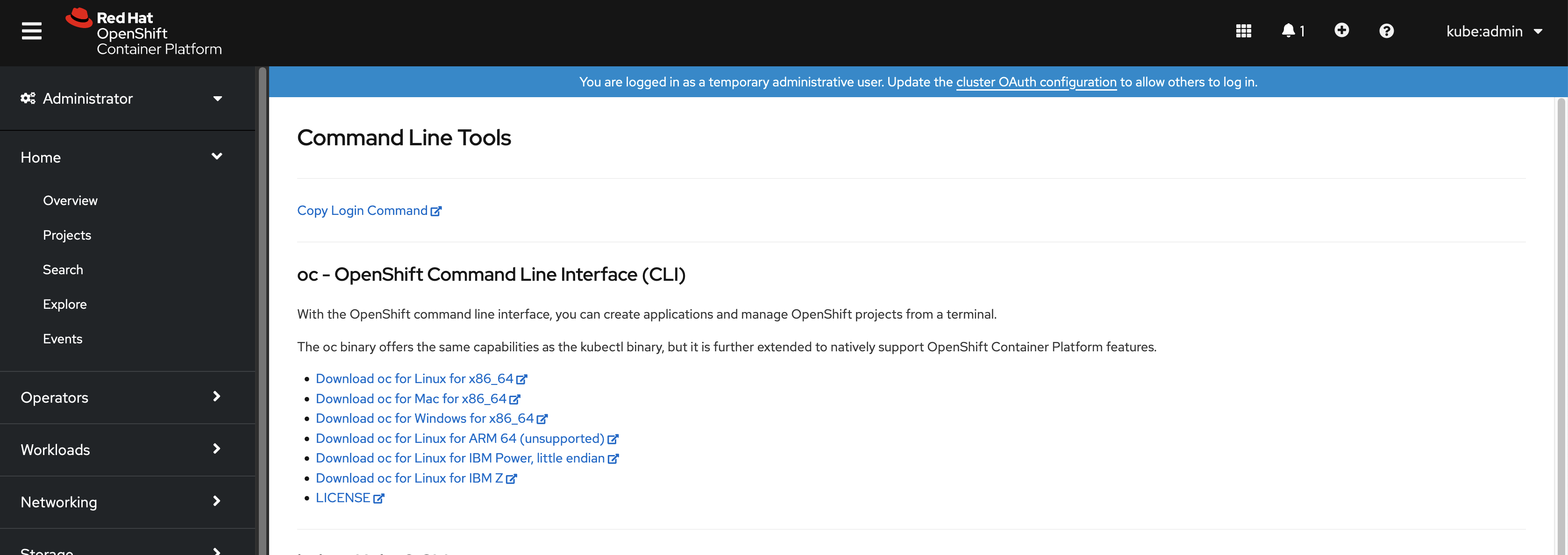
Click Command Line Tools.
-
Select appropriate
ocbinary for your Linux platform, and then click Download oc for Linux. -
Save the file.
-
Unpack the archive.
$ tar xvf <file> -
Move the
ocbinary to a directory that is on yourPATH. To check yourPATH, execute the following command:$ echo $PATH
Verification
- After you install the OpenShift CLI, you can use the
occommand:$ oc <command>
Installing the OpenShift CLI on Windows using the web console
To manage your cluster and deploy applications from the command line on Windows, install the OpenShift CLI (oc) binary. You can download the OpenShift CLI (oc) from the web console.
Procedure
-
From the web console, click ?.
-
Click Command Line Tools.
-
Select the
ocbinary for Windows platform, and then click Download oc for Windows for x86_64. -
Save the file.
-
Unzip the archive with a ZIP program.
-
Move the
ocbinary to a directory that is on yourPATH. To check yourPATH, open the command prompt and execute the following command:C:\> path
Verification
- After you install the OpenShift CLI, you can use the
occommand:C:\> oc <command>
Installing the OpenShift CLI on macOS using the web console
To manage your cluster and deploy applications from the command line on macOS, install the OpenShift CLI (oc) binary. You can download the OpenShift CLI (oc) from the web console.
Procedure
-
From the web console, click ?.
-
Click Command Line Tools.
-
Select the
ocbinary for macOS platform, and then click Download oc for Mac for x86_64.noteFor macOS arm64, click Download oc for Mac for ARM 64.
-
Save the file.
-
Unpack and unzip the archive.
-
Move the
ocbinary to a directory on your PATH. To check yourPATH, open a terminal and execute the following command:$ echo $PATH
Verification
- After you install the OpenShift CLI, you can use the
occommand:$ oc <command>
Installing the OpenShift CLI by using an RPM
For Red Hat Enterprise Linux (RHEL), you can install the OpenShift CLI (oc) as an RPM if you have an active OpenShift Container Platform subscription on your Red Hat account.
You must install oc for RHEL 9 by downloading the binary. Installing oc by using an RPM package is not supported on Red Hat Enterprise Linux (RHEL) 9.
Prerequisites
- You must have root or sudo privileges.
Procedure
- Register with Red Hat Subscription Manager:
# subscription-manager register
- Pull the latest subscription data:
# subscription-manager refresh
- List the available subscriptions:
# subscription-manager list --available --matches '*OpenShift*'
- In the output for the previous command, find the pool ID for an OpenShift Container Platform subscription and attach the subscription to the registered system:
# subscription-manager attach --pool=<pool_id>
- Enable the repositories required by OpenShift Container Platform 4.22.
# subscription-manager repos --enable="rhocp-4.22-for-rhel-8-x86_64-rpms"
- Install the
openshift-clientspackage:# yum install openshift-clients
Verification
- Verify your installation by using an
occommand:$ oc <command>
Installing the OpenShift CLI by using Homebrew
For macOS, you can install the OpenShift CLI (oc) by using the Homebrew package manager.
Prerequisites
- You must have Homebrew (
brew) installed.
Procedure
- Install the openshift-cli package by running the following command:
$ brew install openshift-cli
Verification
- Verify your installation by using an
occommand:$ oc <command>
Logging in to the OpenShift CLI
You can log in to the OpenShift CLI (oc) to access and manage your cluster.
To access a cluster that is accessible only over an HTTP proxy server, you can set the HTTP_PROXY, HTTPS_PROXY and NO_PROXY variables. These environment variables are respected by the oc CLI so that all communication with the cluster goes through the HTTP proxy.
Authentication headers are sent only when using HTTPS transport.
Prerequisites
- You must have access to a OpenShift Container Platform cluster.
- The OpenShift CLI (
oc) is installed.
Procedure
-
Enter the
oc logincommand and pass in a user name:$ oc login -u user1 -
When prompted, enter the required information:
Example outputServer [https://localhost:8443]: https://openshift.example.com:6443The server uses a certificate signed by an unknown authority.You can bypass the certificate check, but any data you send to the server could be intercepted by others.Use insecure connections? (y/n): yAuthentication required for https://openshift.example.com:6443 (openshift)Username: user1Password:Login successful.You don't have any projects. You can try to create a new project, by runningoc new-project <projectname>Welcome! See 'oc help' to get started.- For the
Serverprompt, enter the OpenShift Container Platform server URL. - For the
Use insecure connections?prompt, enter whether to use insecure connections. - For the
Usernameprompt, enter the username to log in with. - For the
Passwordprompt, enter the user’s password.
noteIf you are logged in to the web console, you can generate an
oc logincommand that includes your token and server information. You can use the command to log in to the OpenShift CLI (oc) without the interactive prompts. To generate the command, select Copy login command from the username drop-down menu at the top right of the web console.You can now create a project or issue other commands for managing your cluster.
- For the
Logging in to the OpenShift CLI using a web browser
You can log in to the OpenShift CLI (oc) with the help of a web browser to access and manage your cluster. This allows you to avoid inserting your access token into the command line.
Logging in to the CLI through the web browser runs a server on localhost with HTTP, not HTTPS; use with caution on multi-user workstations.
Prerequisites
- You must have access to an OpenShift Container Platform cluster.
- You must have installed the OpenShift CLI (
oc). - You must have a browser installed.
Procedure
-
Enter the
oc logincommand with the--webflag:$ oc login <cluster_url> --webOptionally, you can specify the server URL and callback port. For example,
oc login <cluster_url> --web --callback-port 8280 localhost:8443. -
The web browser opens automatically. If it does not, click the link in the command output. If you do not specify the OpenShift Container Platform server
octries to open the web console of the cluster specified in the currentocconfiguration file. If noocconfiguration exists,ocprompts interactively for the server URL.Example outputOpening login URL in the default browser: https://openshift.example.comOpening in existing browser session. -
If more than one identity provider is available, select your choice from the options provided.
-
Enter your username and password into the corresponding browser fields. After you are logged in, the browser displays the text
access token received successfully; please return to your terminal. -
Check the CLI for a login confirmation.
Example outputLogin successful.You don't have any projects. You can try to create a new project, by runningoc new-project <projectname>noteThe web console defaults to the profile used in the previous session. To switch between Administrator and Developer profiles, log out of the OpenShift Container Platform web console and clear the cache.
You can now create a project or issue other commands for managing your cluster.
Using the OpenShift CLI
Review how to complete common tasks with the OpenShift CLI (oc).
Creating a project
Use the oc new-project command to create a new project.
Procedure
-
Create a new project by running the following command:
$ oc new-project my-projectExample outputNow using project "my-project" on server "https://openshift.example.com:6443".
Creating a new application
Use the oc new-app command to create a new application.
Procedure
-
Create a new application by running the following command:
$ oc new-app https://github.com/sclorg/cakephp-exExample output--> Found image 40de956 (9 days old) in imagestream "openshift/php" under tag "7.2" for "php"...Run 'oc status' to view your app.
Viewing pods
Use the oc get pods command to view the pods for the current project.
When you run oc inside a pod and do not specify a namespace, the namespace of the pod is used by default.
Procedure
-
View pods for the current project by running the following command:
$ oc get pods -o wideExample outputNAME READY STATUS RESTARTS AGE IP NODE NOMINATED NODEcakephp-ex-1-build 0/1 Completed 0 5m45s 10.131.0.10 ip-10-0-141-74.ec2.internal <none>cakephp-ex-1-deploy 0/1 Completed 0 3m44s 10.129.2.9 ip-10-0-147-65.ec2.internal <none>cakephp-ex-1-ktz97 1/1 Running 0 3m33s 10.128.2.11 ip-10-0-168-105.ec2.internal <none>
Viewing pod logs
Use the oc logs command to view logs for a particular pod.
Procedure
-
View logs for a pod by running the following command:
$ oc logs cakephp-ex-1-deployExample output--> Scaling cakephp-ex-1 to 1--> Success
Viewing the current project
Use the oc project command to view the current project.
Procedure
-
View the current project by running the following command:
$ oc projectExample outputUsing project "my-project" on server "https://openshift.example.com:6443".
Viewing the status of the current project
Use the oc status command to view information about the current project, such as services, deployments, and build configs.
Procedure
-
View the status of the current project by running the following command:
$ oc statusExample outputIn project my-project on server https://openshift.example.com:6443svc/cakephp-ex - 172.30.236.80 ports 8080, 8443dc/cakephp-ex deploys istag/cakephp-ex:latest <-bc/cakephp-ex source builds https://github.com/sclorg/cakephp-ex on openshift/php:7.2deployment #1 deployed 2 minutes ago - 1 pod3 infos identified, use 'oc status --suggest' to see details.
Listing supported API resources
Use the oc api-resources command to view the list of supported API resources on the server.
Procedure
-
View the supported API resources by running the following command:
$ oc api-resourcesExample outputNAME SHORTNAMES APIGROUP NAMESPACED KINDbindings true Bindingcomponentstatuses cs false ComponentStatusconfigmaps cm true ConfigMap...
Getting help
Review the ways to get help with CLI commands and OpenShift Container Platform resources.
Procedure
-
Use
oc helpto get a list and description of all available CLI commands:Example: Get general help for the CLI$ oc helpExample outputOpenShift ClientThis client helps you develop, build, deploy, and run your applications on any OpenShift or Kubernetes compatibleplatform. It also includes the administrative commands for managing a cluster under the 'adm' subcommand.Usage:oc [flags]Basic Commands:login Log in to a servernew-project Request a new projectnew-app Create a new application... -
Use the
--helpflag to get help about a specific CLI command:Example: Get help for the oc create command$ oc create --helpExample outputCreate a resource by filename or stdinJSON and YAML formats are accepted.Usage:oc create -f FILENAME [flags]... -
Use the
oc explaincommand to view the description and fields for a particular resource:Example: View documentation for the Pod resource$ oc explain podsExample outputKIND: PodVERSION: v1DESCRIPTION:Pod is a collection of containers that can run on a host. This resource iscreated by clients and scheduled onto hosts.FIELDS:apiVersion <string>APIVersion defines the versioned schema of this representation of anobject. Servers should convert recognized schemas to the latest internalvalue, and may reject unrecognized values. More info:https://git.k8s.io/community/contributors/devel/api-conventions.md#resources...
Logging out of the OpenShift CLI
You can log out the OpenShift CLI (oc) to end your current session.
Procedure
-
Use the
oc logoutcommand.$ oc logoutExample outputLogged "user1" out on "https://openshift.example.com"This deletes the saved authentication token from the server and removes it from your configuration file.