Ingress Operator in OpenShift Container Platform
The Ingress Operator implements the IngressController API and is the component responsible for enabling external access to OpenShift Container Platform cluster services.
OpenShift Container Platform Ingress Operator
When you create your OpenShift Container Platform cluster, pods and services running on the cluster are each allocated their own IP addresses. The IP addresses are accessible to other pods and services running nearby but are not accessible to outside clients.
The Ingress Operator makes it possible for external clients to access your service by deploying and managing one or more HAProxy-based Ingress Controllers to handle routing. You can use the Ingress Operator to route traffic by specifying OpenShift Container Platform Route and Kubernetes Ingress resources. Configurations within the Ingress Controller, such as the ability to define endpointPublishingStrategy type and internal load balancing, provide ways to publish Ingress Controller endpoints.
The Ingress configuration asset
The installation program generates an asset with an Ingress resource in the config.openshift.io API group, cluster-ingress-02-config.yml.
apiVersion: config.openshift.io/v1
kind: Ingress
metadata:
  name: cluster
spec:
  domain: apps.openshiftdemos.com
The installation program stores this asset in the cluster-ingress-02-config.yml file in the manifests/ directory. This Ingress resource defines the cluster-wide configuration for Ingress. This Ingress configuration is used as follows:
- The Ingress Operator uses the domain from the cluster Ingress configuration as the domain for the default Ingress Controller.
- The OpenShift API Server Operator uses the domain from the cluster Ingress configuration. This domain is also used when generating a default host for a
Routeresource that does not specify an explicit host.
Ingress Controller configuration parameters
The IngressController custom resource (CR) includes optional configuration parameters that you can configure to meet specific needs for your organization.
| Parameter | Description |
|---|---|
domain |
domain is a DNS name serviced by the Ingress Controller and is used to configure multiple features:
domain value must be unique among all Ingress Controllers and cannot be updated.If empty, the default value is ingress.config.openshift.io/cluster .spec.domain. |
replicas |
replicas is the number of Ingress Controller replicas. If not set, the default value is 2. |
endpointPublishingStrategy |
endpointPublishingStrategy is used to publish the Ingress Controller endpoints to other networks, enable load balancer integrations, and provide access to other systems.For cloud environments, use the loadBalancer field to configure the endpoint publishing strategy for your Ingress Controller.On Google Cloud, AWS, and Azure you can configure the following endpointPublishingStrategy fields:
infrastructure.config.openshift.io/cluster .status.platform:
For most platforms, the endpointPublishingStrategy value can be updated. On Google Cloud, you can configure the following endpointPublishingStrategy fields:
For non-cloud environments, such as a bare-metal platform, use the NodePortService, HostNetwork, or Private fields to configure the endpoint publishing strategy for your Ingress Controller.If you do not set a value in one of these fields, the default value is based on binding ports specified in the .status.platform value in the IngressController CR. If you need to update the endpointPublishingStrategy value after your cluster is deployed, you can configure the following endpointPublishingStrategy fields:
|
defaultCertificate |
The defaultCertificate value is a reference to a secret that contains the default certificate that is served by the Ingress Controller. When Routes do not specify their own certificate, defaultCertificate is used.The secret must contain the following keys and data:
domain and subdomains, and the generated certificate's CA is automatically integrated with the cluster's trust store.The in-use certificate, whether generated or user-specified, is automatically integrated with OpenShift Container Platform built-in OAuth server. |
namespaceSelector |
namespaceSelector is used to filter the set of namespaces serviced by the Ingress Controller. This is useful for implementing shards. |
routeSelector |
routeSelector is used to filter the set of Routes serviced by the Ingress Controller. This is useful for implementing shards. |
nodePlacement |
nodePlacement enables explicit control over the scheduling of the Ingress Controller.If not set, the defaults values are used. Note The |
tlsSecurityProfile |
tlsSecurityProfile specifies settings for TLS connections for Ingress Controllers.If not set, the default value is based on the apiservers.config.openshift.io/cluster resource.When using the Old, Intermediate, and Modern profile types, the effective profile configuration is subject to change between releases. For example, given a specification to use the Intermediate profile deployed on release X.Y.Z, an upgrade to release X.Y.Z+1 may cause a new profile configuration to be applied to the Ingress Controller, resulting in a rollout.The minimum TLS version for Ingress Controllers is 1.1, and the maximum TLS version is 1.3.Note Ciphers and the minimum TLS version of the configured security profile are reflected in the Important The Ingress Operator converts the TLS |
clientTLS |
clientTLS authenticates client access to the cluster and services; as a result, mutual TLS authentication is enabled. If not set, then client TLS is not enabled.clientTLS has the required subfields, spec.clientTLS.clientCertificatePolicy and spec.clientTLS.ClientCA.The ClientCertificatePolicy subfield accepts one of the two values: Required or Optional. The ClientCA subfield specifies a config map that is in the openshift-config namespace. The config map should contain a CA certificate bundle.The AllowedSubjectPatterns is an optional value that specifies a list of regular expressions, which are matched against the distinguished name on a valid client certificate to filter requests. The regular expressions must use PCRE syntax. At least one pattern must match a client certificate's distinguished name; otherwise, the Ingress Controller rejects the certificate and denies the connection. If not specified, the Ingress Controller does not reject certificates based on the distinguished name. |
routeAdmission |
routeAdmission defines a policy for handling new route claims, such as allowing or denying claims across namespaces.namespaceOwnership describes how hostname claims across namespaces should be handled. The default is Strict.
wildcardPolicy describes how routes with wildcard policies are handled by the Ingress Controller.
|
IngressControllerLogging |
logging defines parameters for what is logged where. If this field is empty, operational logs are enabled but access logs are disabled.
|
httpHeaders |
httpHeaders defines the policy for HTTP headers.By setting the forwardedHeaderPolicy for the IngressControllerHTTPHeaders, you specify when and how the Ingress Controller sets the Forwarded, X-Forwarded-For, X-Forwarded-Host, X-Forwarded-Port, X-Forwarded-Proto, and X-Forwarded-Proto-Version HTTP headers.By default, the policy is set to Append.
headerNameCaseAdjustments, you can specify case adjustments that can be applied to HTTP header names. Each adjustment is specified as an HTTP header name with the desired capitalization. For example, specifying X-Forwarded-For indicates that the x-forwarded-for HTTP header should be adjusted to have the specified capitalization.These adjustments are only applied to cleartext, edge-terminated, and re-encrypt routes, and only when using HTTP/1. For request headers, these adjustments are applied only for routes that have the haproxy.router.openshift.io/h1-adjust-case=true annotation. For response headers, these adjustments are applied to all HTTP responses. If this field is empty, no request headers are adjusted.actions specifies options for performing certain actions on headers. Headers cannot be set or deleted for TLS passthrough connections. The actions field has additional subfields spec.httpHeader.actions.response and spec.httpHeader.actions.request:
|
httpCompression |
httpCompression defines the policy for HTTP traffic compression.
|
httpErrorCodePages |
httpErrorCodePages specifies custom HTTP error code response pages. By default, an IngressController uses error pages built into the IngressController image. |
httpCaptureCookies |
httpCaptureCookies specifies HTTP cookies that you want to capture in access logs. If the httpCaptureCookies field is empty, the access logs do not capture the cookies.For any cookie that you want to capture, the following parameters must be in your IngressController configuration:
|
httpCaptureHeaders |
httpCaptureHeaders specifies the HTTP headers that you want to capture in the access logs. If the httpCaptureHeaders field is empty, the access logs do not capture the headers.httpCaptureHeaders contains two lists of headers to capture in the access logs. The two lists of header fields are request and response. In both lists, the name field must specify the header name and the maxlength field must specify the maximum length of the header. For example: |
tuningOptions |
tuningOptions specifies options for tuning the performance of Ingress Controller pods.
64 threads. If this field is empty, the Ingress Controller uses the default value of 4 threads. The default value can change in future releases. Setting this field is not recommended because increasing the number of HAProxy threads allows Ingress Controller pods to use more CPU time under load, and prevent other pods from receiving the CPU resources they need to perform. Reducing the number of threads can cause the Ingress Controller to perform poorly.
|
logEmptyRequests |
logEmptyRequests specifies connections for which no request is received and logged. These empty requests come from load balancer health probes or web browser speculative connections (preconnect) and logging these requests can be undesirable. However, these requests can be caused by network errors, in which case logging empty requests can be useful for diagnosing the errors. These requests can be caused by port scans, and logging empty requests can aid in detecting intrusion attempts. Allowed values for this field are Log and Ignore. The default value is Log.The LoggingPolicy type accepts either one of two values:
|
HTTPEmptyRequestsPolicy |
HTTPEmptyRequestsPolicy describes how HTTP connections are handled if the connection times out before a request is received. Allowed values for this field are Respond and Ignore. The default value is Respond.The HTTPEmptyRequestsPolicy type accepts either one of two values:
Ignore can impede detection and diagnosis of problems. These requests can be caused by port scans, in which case logging empty requests can aid in detecting intrusion attempts. |
Ingress Controller TLS security profiles
TLS security profiles provide a way for servers to regulate which ciphers a connecting client can use when connecting to the server.
Understand TLS security profiles
You can use a TLS (Transport Layer Security) security profile, as described in this section, to define which TLS ciphers are required by various OpenShift Container Platform components.
The OpenShift Container Platform TLS security profiles are based on Mozilla recommended configurations.
You can specify one of the following TLS security profiles for each component:
TLS security profiles
| Profile | Description |
|---|---|
Old |
This profile is intended for use with legacy clients or libraries. The profile is based on the Old backward compatibility recommended configuration. The Old profile requires a minimum TLS version of 1.0.Note For the Ingress Controller, the minimum TLS version is converted from 1.0 to 1.1. |
Intermediate |
This profile is the default TLS security profile for the Ingress Controller, kubelet, and control plane. The profile is based on the Intermediate compatibility recommended configuration. The Intermediate profile requires a minimum TLS version of 1.2.Note This profile is the recommended configuration for the majority of clients. |
Modern |
This profile is intended for use with modern clients that have no need for backwards compatibility. This profile is based on the Modern compatibility recommended configuration. The Modern profile requires a minimum TLS version of 1.3. |
Custom |
This profile allows you to define the TLS version and ciphers to use. Warning Use caution when using a |
When using one of the predefined profile types, the effective profile configuration is subject to change between releases. For example, given a specification to use the Intermediate profile deployed on release X.Y.Z, an upgrade to release X.Y.Z+1 might cause a new profile configuration to be applied, resulting in a rollout.
Configure the TLS security profile for the Ingress Controller
To configure a TLS security profile for an Ingress Controller, edit the IngressController custom resource (CR) to specify a predefined or custom TLS security profile.
If a TLS security profile is not configured, the default value is based on the TLS security profile set for the API server, as shown in the following example:
apiVersion: operator.openshift.io/v1
kind: IngressController
 ...
spec:
  tlsSecurityProfile:
    old: {}
    type: Old
The TLS security profile defines the minimum TLS version and the TLS ciphers for TLS connections for Ingress Controllers.
You can see the ciphers and the minimum TLS version of the configured TLS security profile in the IngressController custom resource (CR) under Status.Tls Profile and the configured TLS security profile under Spec.Tls Security Profile. For the Custom TLS security profile, the specific ciphers and minimum TLS version are listed under both parameters.
The HAProxy Ingress Controller image supports TLS 1.3 and the Modern profile.
The Ingress Operator also converts the TLS 1.0 of an Old or Custom profile to 1.1.
Prerequisites
- You have access to the cluster as a user with the
cluster-adminrole.
Procedure
-
Edit the
IngressControllerCR in theopenshift-ingress-operatorproject to configure the TLS security profile:$ oc edit IngressController default -n openshift-ingress-operator. -
Add the
spec.tlsSecurityProfilefield:Sample IngressController CR for a Custom profileapiVersion: operator.openshift.io/v1kind: IngressController...spec:tlsSecurityProfile:type: Customcustom:ciphers:- ECDHE-ECDSA-CHACHA20-POLY1305- ECDHE-RSA-CHACHA20-POLY1305- ECDHE-RSA-AES128-GCM-SHA256- ECDHE-ECDSA-AES128-GCM-SHA256minTLSVersion: VersionTLS11...- Specify the value for the
spec.tlsSecurityProfileparameter. The TLS security profile types areOld,Intermediate, orCustom. The default type isIntermediate. - Specify the appropriate field for the selected
spec.tlsSecurityProfile.type. The fields areold: {},intermediate: {},modern: {}, orcustom:. - For the
customtype, specify a list of TLS ciphers and the minimum accepted TLS version.
- Specify the value for the
-
Save the file to apply the changes.
Verification
-
Verify that the profile is set in the
IngressControllerCR:$ oc describe IngressController default -n openshift-ingress-operatorExample outputName: defaultNamespace: openshift-ingress-operatorLabels: <none>Annotations: <none>API Version: operator.openshift.io/v1Kind: IngressController...Spec:...Tls Security Profile:Custom:Ciphers:ECDHE-ECDSA-CHACHA20-POLY1305ECDHE-RSA-CHACHA20-POLY1305ECDHE-RSA-AES128-GCM-SHA256ECDHE-ECDSA-AES128-GCM-SHA256Min TLS Version: VersionTLS11Type: Custom...
Configuring mutual TLS authentication
You can configure the Ingress Controller to enable mutual TLS (mTLS) authentication by setting a spec.clientTLS value. The clientTLS value configures the Ingress Controller to verify client certificates. This configuration includes setting a clientCA value, which is a reference to a config map. The config map contains the PEM-encoded CA certificate bundle that is used to verify a client’s certificate. Optionally, you can also configure a list of certificate subject filters.
If the clientCA value specifies an X509v3 certificate revocation list (CRL) distribution point, the Ingress Operator downloads and manages a CRL config map based on the HTTP URI X509v3 CRL Distribution Point specified in each provided certificate. The Ingress Controller uses this config map during mTLS/TLS negotiation. Requests that do not provide valid certificates are rejected.
Prerequisites
- You have access to the cluster as a user with the
cluster-adminrole. - You have a PEM-encoded CA certificate bundle.
- If your CA bundle references a CRL distribution point, you must have also included the end-entity or leaf certificate to the client CA bundle. This certificate must have included an HTTP URI under
CRL Distribution Points, as described in RFC 5280. For example:Issuer: C=US, O=Example Inc, CN=Example Global G2 TLS RSA SHA256 2020 CA1Subject: SOME SIGNED CERT X509v3 CRL Distribution Points:Full Name:URI:http://crl.example.com/example.crl
Procedure
-
In the
openshift-confignamespace, create a config map from your CA bundle:$ oc create configmap \router-ca-certs-default \--from-file=ca-bundle.pem=client-ca.crt \ (1)-n openshift-config- The config map data key must be
ca-bundle.pem, and the data value must be a CA certificate in PEM format.
- The config map data key must be
-
Edit the
IngressControllerresource in theopenshift-ingress-operatorproject:$ oc edit IngressController default -n openshift-ingress-operator -
Add the
spec.clientTLSfield and subfields to configure mutual TLS:Sample IngressController CR for a clientTLS profile that specifies filtering patternsapiVersion: operator.openshift.io/v1kind: IngressControllermetadata:name: defaultnamespace: openshift-ingress-operatorspec:clientTLS:clientCertificatePolicy: RequiredclientCA:name: router-ca-certs-defaultallowedSubjectPatterns:- "^/CN=example.com/ST=NC/C=US/O=Security/OU=OpenShift$" -
Optional, get the Distinguished Name (DN) for
allowedSubjectPatternsby entering the following command.
$ openssl  x509 -in custom-cert.pem  -noout -subject
subject= /CN=example.com/ST=NC/C=US/O=Security/OU=OpenShift
View the default Ingress Controller
The Ingress Operator is a core feature of OpenShift Container Platform and is enabled out of the box.
Every new OpenShift Container Platform installation has an ingresscontroller named default. It can be supplemented with additional Ingress Controllers. If the default ingresscontroller is deleted, the Ingress Operator will automatically recreate it within a minute.
Procedure
- View the default Ingress Controller:
$ oc describe --namespace=openshift-ingress-operator ingresscontroller/default
View Ingress Operator status
You can view and inspect the status of your Ingress Operator.
Procedure
- View your Ingress Operator status:
$ oc describe clusteroperators/ingress
View Ingress Controller logs
You can view your Ingress Controller logs.
Procedure
- View your Ingress Controller logs:
$ oc logs --namespace=openshift-ingress-operator deployments/ingress-operator -c <container_name>
View Ingress Controller status
You can view the status of a particular Ingress Controller.
Procedure
- View the status of an Ingress Controller:
$ oc describe --namespace=openshift-ingress-operator ingresscontroller/<name>
Create a custom Ingress Controller
As a cluster administrator, you can create a new custom Ingress Controller.
Because the default Ingress Controller might change during OpenShift Container Platform updates, creating a custom Ingress Controller can be helpful when maintaining a configuration manually that persists across cluster updates.
This example provides a minimal spec for a custom Ingress Controller. To further customize your custom Ingress Controller, see "Configuring the Ingress Controller".
Prerequisites
- Install the OpenShift CLI (
oc). - Log in as a user with
cluster-adminprivileges.
Procedure
-
Create a YAML file that defines the custom
IngressControllerobject:Example custom-ingress-controller.yaml fileapiVersion: operator.openshift.io/v1kind: IngressControllermetadata:name: <custom_name>namespace: openshift-ingress-operatorspec:defaultCertificate:name: <custom-ingress-custom-certs>replicas: 1domain: <custom_domain>where:
metadata.name- Specifies a custom
namefor theIngressControllerobject. spec.defaultCertificate.name- Specifies the name of the secret with the custom wildcard certificate.
spec.replicas- Specifies the number of replicas. Minimum replica needs to be ONE.
spec.domain- Specifies the domain to your domain name. The domain specified on the IngressController object and the domain used for the certificate must match. For example, if the domain value is "custom_domain.mycompany.com", then the certificate must have SAN *.custom_domain.mycompany.com (with the
*.added to the domain).
-
Create the object by running the following command:
$ oc create -f custom-ingress-controller.yaml
Configuring the Ingress Controller
Set a custom default certificate
As an administrator, you can configure an Ingress Controller to use a custom certificate by creating a Secret resource and editing the IngressController custom resource (CR).
The following procedure assumes that the custom certificate and key pair are in the tls.crt and tls.key files in the current working directory. Substitute the actual path names for tls.crt and tls.key. You also may substitute another name for custom-certs-default when creating the Secret resource and referencing it in the IngressController CR.
The following procedure causes the Ingress Controller to be redeployed, using a rolling deployment strategy.
Prerequisites
-
You must have a certificate/key pair in PEM-encoded files, where the certificate is signed by a trusted certificate authority or by a private trusted certificate authority that you configured in a custom PKI.
-
Your certificate meets the following requirements:
- The certificate is valid for the ingress domain.
- The certificate uses the
subjectAltNameextension to specify a wildcard domain, such as*.apps.ocp4.example.com.
-
You must have an
IngressControllerCR, which includes just having thedefaultIngressControllerCR. You can run the following command to check that you have anIngressControllerCR:$ oc --namespace openshift-ingress-operator get ingresscontrollersnoteIf you have intermediate certificates, they must be included in the
tls.crtfile of the secret containing a custom default certificate. Order matters when specifying a certificate; list your intermediate certificate(s) after any server certificate(s).
Procedure
-
Create a Secret resource containing the custom certificate in the
openshift-ingressnamespace using thetls.crtandtls.keyfiles.$ oc --namespace openshift-ingress create secret tls custom-certs-default --cert=tls.crt --key=tls.key -
Update the IngressController CR to reference the new certificate secret:
$ oc patch --type=merge --namespace openshift-ingress-operator ingresscontrollers/default \--patch '{"spec":{"defaultCertificate":{"name":"custom-certs-default"}}}' -
Verify the update was effective:
$ echo Q |\openssl s_client -connect console-openshift-console.apps.<domain>:443 -showcerts 2>/dev/null |\openssl x509 -noout -subject -issuer -enddatewhere:
<domain>- Specifies the base domain name for your cluster.
Example outputsubject=C = US, ST = NC, L = Raleigh, O = RH, OU = OCP4, CN = *.apps.example.comissuer=C = US, ST = NC, L = Raleigh, O = RH, OU = OCP4, CN = example.comnotAfter=May 10 08:32:45 2022 GMtipYou can alternatively apply the following YAML to set a custom default certificate:
apiVersion: operator.openshift.io/v1kind: IngressControllermetadata:name: defaultnamespace: openshift-ingress-operatorspec:defaultCertificate:name: custom-certs-defaultThe certificate secret name should match the value used to update the CR.
Once the IngressController CR has been modified, the Ingress Operator updates the Ingress Controller’s deployment to use the custom certificate.
Remove a custom default certificate
As an administrator, you can remove a custom certificate that you configured an Ingress Controller to use.
Prerequisites
- You have access to the cluster as a user with the
cluster-adminrole. - You have installed the OpenShift CLI (
oc). - You previously configured a custom default certificate for the Ingress Controller.
Procedure
-
To remove the custom certificate and restore the certificate that ships with OpenShift Container Platform, enter the following command:
$ oc patch -n openshift-ingress-operator ingresscontrollers/default \--type json -p $'- op: remove\n path: /spec/defaultCertificate'There can be a delay while the cluster reconciles the new certificate configuration.
Verification
-
To confirm that the original cluster certificate is restored, enter the following command:
$ echo Q | \openssl s_client -connect console-openshift-console.apps.<domain>:443 -showcerts 2>/dev/null | \openssl x509 -noout -subject -issuer -enddatewhere:
<domain>- Specifies the base domain name for your cluster.
Example outputsubject=CN = *.apps.<domain>issuer=CN = ingress-operator@1620633373notAfter=May 10 10:44:36 2023 GMT
Autoscale an Ingress Controller
You can automatically scale an Ingress Controller to dynamically meet routing performance or availability requirements. For example, the requirement to increase throughput.
The following procedure provides an example for scaling up the default Ingress Controller.
Prerequisites
- You have the OpenShift CLI (
oc) installed. - You have access to an OpenShift Container Platform cluster as a user with the
cluster-adminrole. - On VMware vSphere, bare-metal, and Nutanix installer-provisioned infrastructure, scaling up Ingress Controller pods does not improve external traffic performance. To improve performance, ensure that you complete the following prerequisites:
- You manually configured a user-managed load balancer for your cluster.
- You ensured that the load balancer was configured for the cluster nodes that handle incoming traffic from the Ingress Controller.
- You installed the Custom Metrics Autoscaler Operator and an associated KEDA Controller.
- You can install the Operator by using the software catalog on the web console. After you install the Operator, you can create an instance of
KedaController.
- You can install the Operator by using the software catalog on the web console. After you install the Operator, you can create an instance of
Procedure
-
Create a service account to authenticate with Thanos by running the following command:
$ oc create -n openshift-ingress-operator serviceaccount thanos && oc describe -n openshift-ingress-operator serviceaccount thanosExample outputName: thanosNamespace: openshift-ingress-operatorLabels: <none>Annotations: <none>Image pull secrets: thanos-dockercfg-kfvf2Mountable secrets: thanos-dockercfg-kfvf2Tokens: <none>Events: <none> -
Manually create the service account secret token with the following command:
$ oc apply -f - <<EOFapiVersion: v1kind: Secretmetadata:name: thanos-tokennamespace: openshift-ingress-operatorannotations:kubernetes.io/service-account.name: thanostype: kubernetes.io/service-account-tokenEOF -
Define a
TriggerAuthenticationobject within theopenshift-ingress-operatornamespace by using the service account’s token.- Create the
TriggerAuthenticationobject and pass the value of thesecretvariable to theTOKENparameter:$ oc apply -f - <<EOFapiVersion: keda.sh/v1alpha1kind: TriggerAuthenticationmetadata:name: keda-trigger-auth-prometheusnamespace: openshift-ingress-operatorspec:secretTargetRef:- parameter: bearerTokenname: thanos-tokenkey: token- parameter: caname: thanos-tokenkey: ca.crtEOF
- Create the
-
Create and apply a role for reading metrics from Thanos:
- Create a new role,
thanos-metrics-reader.yaml, that reads metrics from pods and nodes:thanos-metrics-reader.yamlapiVersion: rbac.authorization.k8s.io/v1kind: Rolemetadata:name: thanos-metrics-readernamespace: openshift-ingress-operatorrules:- apiGroups:- ""resources:- pods- nodesverbs:- get- apiGroups:- metrics.k8s.ioresources:- pods- nodesverbs:- get- list- watch- apiGroups:- ""resources:- namespacesverbs:- get - Apply the new role by running the following command:
$ oc apply -f thanos-metrics-reader.yaml
- Create a new role,
-
Add the new role to the service account by entering the following commands:
$ oc adm policy -n openshift-ingress-operator add-role-to-user thanos-metrics-reader -z thanos --role-namespace=openshift-ingress-operator$ oc adm policy -n openshift-ingress-operator add-cluster-role-to-user cluster-monitoring-view -z thanosnoteThe argument
add-cluster-role-to-useris only required if you use cross-namespace queries. The following step uses a query from thekube-metricsnamespace which requires this argument. -
Create a new
ScaledObjectYAML file,ingress-autoscaler.yaml, that targets the default Ingress Controller deployment:Example ScaledObject definitionapiVersion: keda.sh/v1alpha1kind: ScaledObjectmetadata:name: ingress-scalernamespace: openshift-ingress-operatorspec:scaleTargetRef:apiVersion: operator.openshift.io/v1kind: IngressControllername: defaultenvSourceContainerName: ingress-operatorminReplicaCount: 1maxReplicaCount: 20cooldownPeriod: 1pollingInterval: 1triggers:- type: prometheusmetricType: AverageValuemetadata:serverAddress: https://thanos-querier.openshift-monitoring.svc.cluster.local:9091namespace: openshift-ingress-operatormetricName: 'kube-node-role'threshold: '1'query: 'sum(kube_node_role{role="worker",service="kube-state-metrics"})'authModes: "bearer"authenticationRef:name: keda-trigger-auth-prometheuswhere:
spec.scaleTargetRef- Specifies the custom resource that you are targeting. In this case, the Ingress Controller.
spec.maxReplicaCount- Specifies the maximum number of replicas. If you omit this field, the default maximum is set to 100 replicas. This field is optional.
spec.triggers.metadata.serverAddress- Specifies the Thanos service endpoint in the
openshift-monitoringnamespace. spec.triggers.metadata.namespace- The Ingress Operator namespace.
spec.triggers.metadata.query- This expression evaluates to however many worker nodes are present in the deployed cluster.
warningIf you are using cross-namespace queries, you must target port 9091 and not port 9092 in the
serverAddressfield. You also must have elevated privileges to read metrics from this port. -
Apply the custom resource definition by running the following command:
$ oc apply -f ingress-autoscaler.yaml
Verification
- Verify that the default Ingress Controller is scaled out to match the value returned by the
kube-state-metricsquery by running the following commands:-
Use the
grepcommand to search the Ingress Controller YAML file for the number of replicas:$ oc get -n openshift-ingress-operator ingresscontroller/default -o yaml | grep replicas: -
Get the pods in the
openshift-ingressproject:$ oc get pods -n openshift-ingressExample outputNAME READY STATUS RESTARTS AGErouter-default-7b5df44ff-l9pmm 2/2 Running 0 17hrouter-default-7b5df44ff-s5sl5 2/2 Running 0 3d22hrouter-default-7b5df44ff-wwsth 2/2 Running 0 66s
-
Additional resources
- Installing the custom metrics autoscaler
- Enabling monitoring for user-defined projects
- Understanding custom metrics autoscaler trigger authentications
- Understanding custom metrics autoscaler triggers
- Understanding how to add custom metrics autoscalers
Scale an Ingress Controller
Manually scale an Ingress Controller to meeting routing performance or availability requirements such as the requirement to increase throughput. oc commands are used to scale the IngressController resource. The following procedure provides an example for scaling up the default IngressController.
Scaling is not an immediate action, as it takes time to create the desired number of replicas.
Prerequisites
- On VMware vSphere, bare-metal, and Nutanix installer-provisioned infrastructure, scaling up Ingress Controller pods does not improve external traffic performance. To improve performance, ensure that you complete the following prerequisites:
- You manually configured a user-managed load balancer for your cluster.
- You ensured that the load balancer was configured for the cluster nodes that handle incoming traffic from the Ingress Controller.
Procedure
-
View the current number of available replicas for the default
IngressController:$ oc get -n openshift-ingress-operator ingresscontrollers/default -o jsonpath='{$.status.availableReplicas}' -
Scale the default
IngressControllerto the desired number of replicas by using theoc patchcommand. The following example scales the defaultIngressControllerto 3 replicas.$ oc patch -n openshift-ingress-operator ingresscontroller/default --patch '{"spec":{"replicas": 3}}' --type=merge -
Verify that the default
IngressControllerscaled to the number of replicas that you specified:$ oc get -n openshift-ingress-operator ingresscontrollers/default -o jsonpath='{$.status.availableReplicas}'tipYou can alternatively apply the following YAML to scale an Ingress Controller to three replicas:
apiVersion: operator.openshift.io/v1kind: IngressControllermetadata:name: defaultnamespace: openshift-ingress-operatorspec:replicas: 3 (1)where:
spec.replicas- If you need a different amount of replicas, change the
replicasvalue.
Configure Ingress access logging
To enable Ingress access logging in OpenShift Container Platform, you can log to a sidecar or forward logs to a custom syslog endpoint and specify the log format.
Container logging is useful to enable access logs on low-traffic clusters when there is no existing Syslog logging infrastructure, or for short-term use while diagnosing problems with the Ingress Controller.
Syslog is needed for high-traffic clusters where access logs could exceed the OpenShift Logging stack’s capacity, or for environments where any logging solution needs to integrate with an existing Syslog logging infrastructure. The Syslog use-cases can overlap.
Prerequisites
- Log in as a user with
cluster-adminprivileges.
Procedure
-
For Ingress access logging to a sidecar, complete the following commands:
-
To enable Ingress access logging to a sidecar, enter the following command:
$ oc patch ingresscontroller default -n openshift-ingress-operator --type=merge \-p '{"spec":{"logging":{"access":{"destination":{"type":"Container"}}}}}'After you configure the Ingress Controller to log to a sidecar, the Operator creates a container named
logsinside a router pod that exists in theopenshift-ingressnamespace. -
If you need to disable Ingress access logging, enter the following command that does not specify any values for
spec.logging:$ oc patch ingresscontroller default -n openshift-ingress-operator --type=json \-p='[{"op": "remove", "path": "/spec/logging"}]' -
To stream the access logs and system events from the OpenShift Container Platform Ingress Controller, enter the following command:
$ oc -n openshift-ingress logs deployment.apps/router-default -c logsExample output2020-05-11T19:11:50.135710+00:00 router-default-57dfc6cd95-bpmk6 router-default-57dfc6cd95-bpmk6 haproxy[108]: 174.19.21.82:39654 [11/May/2020:19:11:50.133] public be_http:hello-openshift:hello-openshift/pod:hello-openshift:hello-openshift:10.128.2.12:8080 0/0/1/0/1 200 142 - - --NI 1/1/0/0/0 0/0 "GET / HTTP/1.1"
-
-
To enable logging to an external Syslog server, enter the following command. Use this option if you need to forward logs to a centralized logging solution such as Splunk, Rsyslog, or Logstash.
$ oc patch ingresscontroller default -n openshift-ingress-operator --type=merge \-p '{"spec":{"logging":{"access":{"destination":{"type":"Syslog","syslog":{"address":"1.2.3.4","port":514,"maxLenght":1024}}}}}}'- Replace
1.2.3.4with the destination IP address of your logging server. Syslog does not support a DNS hostname value. - Replace
514with the UDP destination port of your logging server. - Replace
1024with the maximum length of a log message in bytes that you want to set for log messages.
- Replace
-
To customize the log format, append an HAProxy-compatible log string to the following command. The string determines what information gets captured in the log format, such as a client IP address.
$ oc patch ingresscontroller default -n openshift-ingress-operator --type=merge \-p '{"spec":{"logging":{"access":{"httpLogFormat":"%ci:%cp [%t] %ft %b/%s %B %bq %HM %HU %HV"}}}}'noteFor a list of HAProxy log variable descriptions, see Custom log format in the upstream HAProxy documentation.
-
To capture custom HTTP headers or response headers in your logs, enter the following command. Consider this option if you need to track an
X-Forwarded-Forheader or custom application IDs in the Ingress and application logs.$ oc patch ingresscontroller default -n openshift-ingress-operator --type=merge -p '{"spec":{"logging":{"access":{"httpCaptureHeaders":{"request":[{"name":"User-Agent","maxLength": 1024}],"response":[{"name":"Content-Type","maxLength": 1024}]}}}}}' -
To configure a log empty requests policy, enter the following command and set the
logEmptyRequestsparameter toLog. By default, HAProxy might not log empty requests or health checks, so you must manually enable this feature. To disable the feature, set thelogEmptyRequestsparameter toIgnore.$ oc patch ingresscontroller default -n openshift-ingress-operator --type=merge -p '{"spec":{"logging":{"access":{"logEmptyRequests":"Ignore"}}}}'
Additional resources
Set Ingress Controller thread count
A cluster administrator can set the thread count to increase the amount of incoming connections a cluster can handle. You can patch an existing Ingress Controller to increase the amount of threads.
Prerequisites
- The following assumes that you already created an Ingress Controller.
Procedure
-
Update the Ingress Controller to increase the number of threads:
$ oc -n openshift-ingress-operator patch ingresscontroller/default --type=merge -p '{"spec":{"tuningOptions": {"threadCount": 8}}}'noteIf you have a node that is capable of running large amounts of resources, you can configure
spec.nodePlacement.nodeSelectorwith labels that match the capacity of the intended node, and configurespec.tuningOptions.threadCountto an appropriately high value.
Configure an Ingress Controller to use an internal load balancer
When creating an Ingress Controller on cloud platforms, the Ingress Controller is published by a public cloud load balancer by default. As an administrator, you can create an Ingress Controller that uses an internal cloud load balancer.
If your cloud provider is Microsoft Azure, you must have at least one public load balancer that points to your nodes. If you do not, all of your nodes will lose egress connectivity to the internet.
If you want to change the scope for an IngressController, you can change the .spec.endpointPublishingStrategy.loadBalancer.scope parameter after the custom resource (CR) is created.
Figure 1. Diagram of LoadBalancer
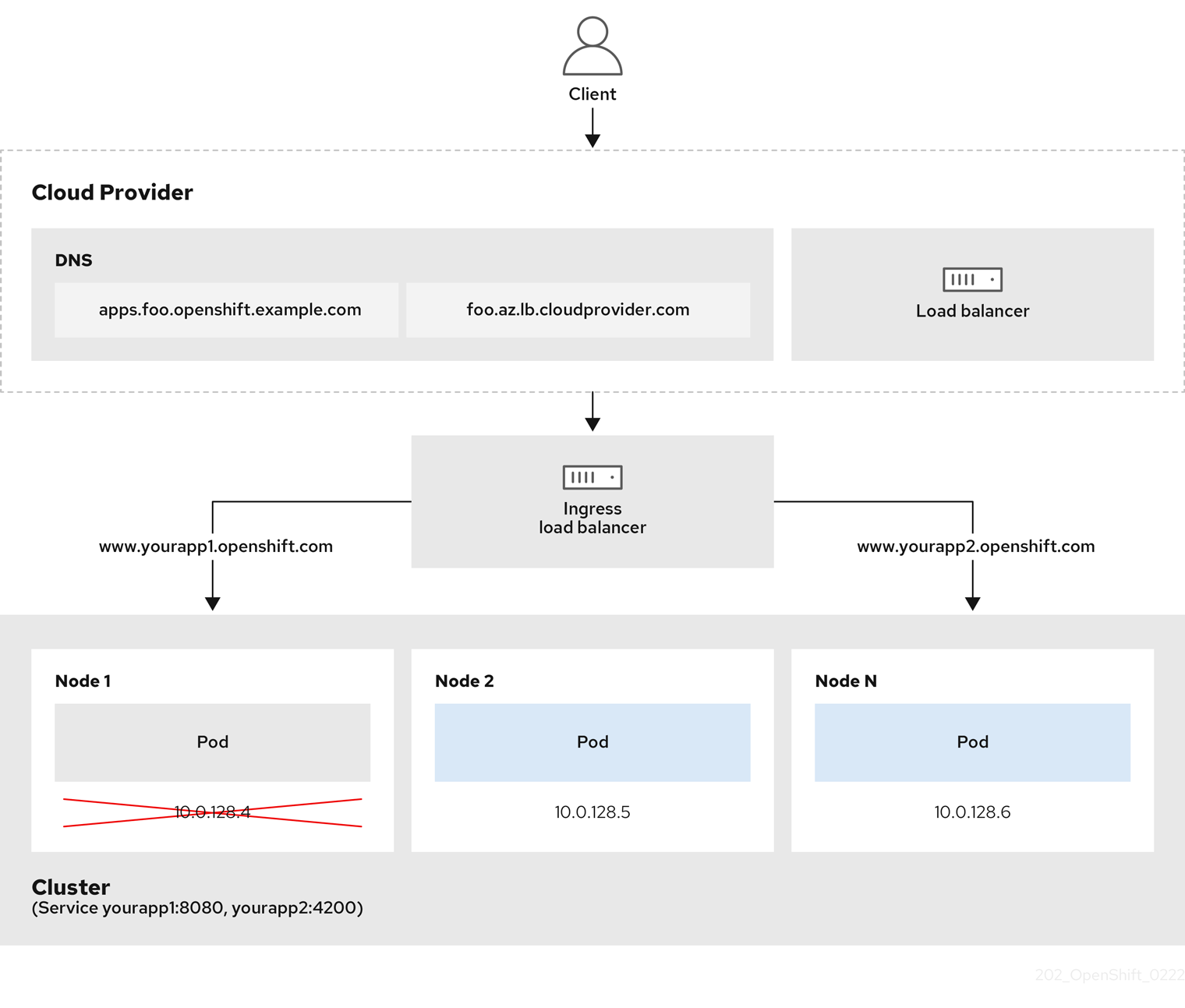
The preceding graphic shows the following concepts pertaining to OpenShift Container Platform Ingress LoadBalancerService endpoint publishing strategy:
- You can load balance externally, using the cloud provider load balancer, or internally, using the OpenShift Ingress Controller Load Balancer.
- You can use the single IP address of the load balancer and more familiar ports, such as 8080 and 4200 as shown on the cluster depicted in the graphic.
- Traffic from the external load balancer is directed at the pods, and managed by the load balancer, as depicted in the instance of a down node. See the Kubernetes Services documentation for implementation details.
Prerequisites
- Install the OpenShift CLI (
oc). - Log in as a user with
cluster-adminprivileges.
Procedure
-
Create an
IngressControllercustom resource (CR) in a file named<name>-ingress-controller.yaml, such as in the following example:apiVersion: operator.openshift.io/v1kind: IngressControllermetadata:namespace: openshift-ingress-operatorname: <name>spec:domain: <domain>endpointPublishingStrategy:type: LoadBalancerServiceloadBalancer:scope: Internalwhere:
metadata.name- Specifies a name for the
IngressControllerobject. spec.domain- Specifies the
domainfor the application published by the controller. spec.endpointPublishingStrategy.loadBalancer.scope- Specifies a value of
Internalto use an internal load balancer.
-
Create the Ingress Controller defined in the previous step by running the following command:
$ oc create -f <name>-ingress-controller.yamlwhere:
<name>- Specifies the name of the
IngressControllerobject.
-
Optional: Confirm that the Ingress Controller was created by running the following command:
$ oc --all-namespaces=true get ingresscontrollers
Configure global access for an Ingress Controller on Google Cloud
To allow clients in any region of the same VPC to reach workloads behind an internal load balancer on Google Cloud, you can enable global access on an Ingress Controller in OpenShift Container Platform.
For more information, see the Google Cloud documentation for global access.
Prerequisites
- You deployed an OpenShift Container Platform cluster on Google Cloud infrastructure.
- You configured an Ingress Controller to use an internal load balancer.
- You installed the OpenShift CLI (
oc).
Procedure
-
Configure the Ingress Controller resource to allow global access.
noteYou can also create an Ingress Controller and specify the global access option.
-
Configure the Ingress Controller resource:
$ oc -n openshift-ingress-operator edit ingresscontroller/default -
Edit the YAML file:
Sample clientAccess configuration to Globalspec:endpointPublishingStrategy:loadBalancer:providerParameters:gcp:clientAccess: Global (1)type: GCPscope: Internaltype: LoadBalancerService- Set
gcp.clientAccesstoGlobal.
- Set
-
Save the file to apply the changes.
-
-
Run the following command to verify that the service allows global access:
$ oc -n openshift-ingress edit svc/router-default -o yamlThe output shows that global access is enabled for Google Cloud with the annotation,
networking.gke.io/internal-load-balancer-allow-global-access.
Set the Ingress Controller health check interval
A cluster administrator can set the health check interval to define how long the router waits between two consecutive health checks. This value is applied globally as a default for all routes. The default value is 5 seconds.
Prerequisites
- The following assumes that you already created an Ingress Controller.
Procedure
-
Update the Ingress Controller to change the interval between back end health checks:
$ oc -n openshift-ingress-operator patch ingresscontroller/default --type=merge -p '{"spec":{"tuningOptions": {"healthCheckInterval": "8s"}}}'noteTo override the
healthCheckIntervalfor a single route, use the route annotationrouter.openshift.io/haproxy.health.check.interval
Configure the default Ingress Controller for your cluster to be internal
You can configure the default Ingress Controller for your cluster to be internal by deleting and recreating it.
If your cloud provider is Microsoft Azure, you must have at least one public load balancer that points to your nodes. If you do not, all of your nodes will lose egress connectivity to the internet.
If you want to change the scope for an IngressController, you can change the .spec.endpointPublishingStrategy.loadBalancer.scope parameter after the custom resource (CR) is created.
Prerequisites
- Install the OpenShift CLI (
oc). - Log in as a user with
cluster-adminprivileges.
Procedure
- Configure the
defaultIngress Controller for your cluster to be internal by deleting and recreating it.$ oc replace --force --wait --filename - <<EOFapiVersion: operator.openshift.io/v1kind: IngressControllermetadata:namespace: openshift-ingress-operatorname: defaultspec:endpointPublishingStrategy:type: LoadBalancerServiceloadBalancer:scope: InternalEOF
Configure the route admission policy
Administrators and application developers can run applications in multiple namespaces with the same domain name. This is for organizations where multiple teams develop microservices that are exposed on the same hostname.
Allowing claims across namespaces should only be enabled for clusters with trust between namespaces, otherwise a malicious user could take over a hostname. For this reason, the default admission policy disallows hostname claims across namespaces.
Prerequisites
- Cluster administrator privileges.
Procedure
-
Edit the
.spec.routeAdmissionfield of theingresscontrollerresource variable using the following command:$ oc -n openshift-ingress-operator patch ingresscontroller/default --patch '{"spec":{"routeAdmission":{"namespaceOwnership":"InterNamespaceAllowed"}}}' --type=mergeSample Ingress Controller configurationspec:routeAdmission:namespaceOwnership: InterNamespaceAllowed...tipYou can alternatively apply the following YAML to configure the route admission policy:
apiVersion: operator.openshift.io/v1kind: IngressControllermetadata:name: defaultnamespace: openshift-ingress-operatorspec:routeAdmission:namespaceOwnership: InterNamespaceAllowed
Use wildcard routes
The HAProxy Ingress Controller has support for wildcard routes. The Ingress Operator uses wildcardPolicy to configure the ROUTER_ALLOW_WILDCARD_ROUTES environment variable of the Ingress Controller.
The default behavior of the Ingress Controller is to admit routes with a wildcard policy of None, which is backwards compatible with existing IngressController resources.
Procedure
- Configure the wildcard policy.
- Use the following command to edit the
IngressControllerresource:$ oc edit IngressController - Under
spec, set thewildcardPolicyfield toWildcardsDisallowedorWildcardsAllowed:spec:routeAdmission:wildcardPolicy: WildcardsDisallowed # or WildcardsAllowed
- Use the following command to edit the
HTTP header configuration
To customize request and response headers for your applications, configure the Ingress Controller or apply specific route annotations. Understanding the interaction between these configuration methods ensures you effectively manage global and route-specific header policies.
You can also set certain headers by using route annotations. The various ways of configuring headers can present challenges when working together.
You can only set or delete headers within an IngressController or Route CR, you cannot append them. If an HTTP header is set with a value, that value must be complete and not require appending in the future. In situations where it makes sense to append a header, such as the X-Forwarded-For header, use the spec.httpHeaders.forwardedHeaderPolicy field, instead of spec.httpHeaders.actions.
- Order of precedence
- When the same HTTP header is modified both in the Ingress Controller and in a route, HAProxy prioritizes the actions in certain ways depending on whether it is a request or response header.
- For HTTP response headers, actions specified in the Ingress Controller are executed after the actions specified in a route. This means that the actions specified in the Ingress Controller take precedence.
- For HTTP request headers, actions specified in a route are executed after the actions specified in the Ingress Controller. This means that the actions specified in the route take precedence.
For example, a cluster administrator sets the X-Frame-Options response header with the value DENY in the Ingress Controller using the following configuration:
apiVersion: operator.openshift.io/v1
kind: IngressController
# ...
spec:
  httpHeaders:
    actions:
      response:
      - name: X-Frame-Options
        action:
          type: Set
          set:
            value: DENY
A route owner sets the same response header that the cluster administrator set in the Ingress Controller, but with the value SAMEORIGIN using the following configuration:
apiVersion: route.openshift.io/v1
kind: Route
# ...
spec:
  httpHeaders:
    actions:
      response:
      - name: X-Frame-Options
        action:
          type: Set
          set:
            value: SAMEORIGIN
When both the IngressController spec and Route spec are configuring the X-Frame-Options response header, then the value set for this header at the global level in the Ingress Controller takes precedence, even if a specific route allows frames. For a request header, the Route spec value overrides the IngressController spec value.
This prioritization occurs because the haproxy.config file uses the following logic, where the Ingress Controller is considered the front end and individual routes are considered the back end. The header value DENY applied to the front end configurations overrides the same header with the value SAMEORIGIN that is set in the back end:
frontend public
  http-response set-header X-Frame-Options 'DENY'

frontend fe_sni
  http-response set-header X-Frame-Options 'DENY'

frontend fe_no_sni
  http-response set-header X-Frame-Options 'DENY'

backend be_secure:openshift-monitoring:alertmanager-main
  http-response set-header X-Frame-Options 'SAMEORIGIN'
Additionally, any actions defined in either the Ingress Controller or a route override values set using route annotations.
- Special case headers
- The following headers are either prevented entirely from being set or deleted, or allowed under specific circumstances:
Special case header configuration options
| Header name | Configurable using IngressController spec |
Configurable using Route spec |
Reason for disallowment | Configurable using another method |
|---|---|---|---|---|
proxy |
No | No | The proxy HTTP request header can be used to exploit vulnerable CGI applications by injecting the header value into the HTTP_PROXY environment variable. The proxy HTTP request header is also non-standard and prone to error during configuration. |
No |
host |
No | Yes | When the host HTTP request header is set using the IngressController CR, HAProxy can fail when looking up the correct route. |
No |
strict-transport-security |
No | No | The strict-transport-security HTTP response header is already handled using route annotations and does not need a separate implementation. |
Yes: the haproxy.router.openshift.io/hsts_header route annotation |
cookie and set-cookie |
No | No | The cookies that HAProxy sets are used for session tracking to map client connections to particular back-end servers. Allowing these headers to be set could interfere with HAProxy's session affinity and restrict HAProxy's ownership of a cookie. | Yes:
|
Set or delete HTTP request and response headers in an Ingress Controller
To set or delete HTTP request and response headers on routes in OpenShift Container Platform, you can configure header actions on an Ingress Controller. You can apply the actions to all routes that the controller serves or to specific routes.
For example, you might want to migrate an application running on your cluster to use mutual TLS, which requires that your application checks for an X-Forwarded-Client-Cert request header, but the OpenShift Container Platform default Ingress Controller provides an X-SSL-Client-Der request header.
The following procedure modifies the Ingress Controller to set the X-Forwarded-Client-Cert request header, and delete the X-SSL-Client-Der request header.
Prerequisites
- You have installed the OpenShift CLI (
oc). - You have access to an OpenShift Container Platform cluster as a user with the
cluster-adminrole.
Procedure
-
Edit the Ingress Controller resource:
$ oc -n openshift-ingress-operator edit ingresscontroller/default -
Replace the X-SSL-Client-Der HTTP request header with the X-Forwarded-Client-Cert HTTP request header:
apiVersion: operator.openshift.io/v1kind: IngressControllermetadata:name: defaultnamespace: openshift-ingress-operatorspec:httpHeaders:actions: (1)request: (2)- name: X-Forwarded-Client-Cert (3)action:type: Set (4)set:value: "%{+Q}[ssl_c_der,base64]" (5)- name: X-SSL-Client-Deraction:type: Delete- The list of actions you want to perform on the HTTP headers.
- The type of header you want to change. In this case, a request header.
- The name of the header you want to change. For a list of available headers you can set or delete, see HTTP header configuration.
- The type of action being taken on the header. This field can have the value
SetorDelete. - When setting HTTP headers, you must provide a
value. The value can be a string from a list of available directives for that header, for exampleDENY, or it can be a dynamic value that will be interpreted using HAProxy’s dynamic value syntax. In this case, a dynamic value is added.
noteFor setting dynamic header values for HTTP responses, allowed sample fetchers are
res.hdrandssl_c_der. For setting dynamic header values for HTTP requests, allowed sample fetchers arereq.hdrandssl_c_der. Both request and response dynamic values can use thelowerandbase64converters. -
Save the file to apply the changes.
Use X-Forwarded headers
To control how the HAProxy Ingress Controller handles Forwarded and X-Forwarded-For headers in OpenShift Container Platform, you can set the HTTPHeaders policy on an Ingress Controller. The Ingress Operator configures the ROUTER_SET_FORWARDED_HEADERS environment variable from that field.
Procedure
- Configure the
HTTPHeadersfield for the Ingress Controller.- Use the following command to edit the
IngressControllerresource:$ oc edit IngressController - Under
spec, set theHTTPHeaderspolicy field toAppend,Replace,IfNone, orNever:apiVersion: operator.openshift.io/v1kind: IngressControllermetadata:name: defaultnamespace: openshift-ingress-operatorspec:httpHeaders:forwardedHeaderPolicy: Append
- Use the following command to edit the
Example use cases for X-Forwarded headers
You can use X-Forwarded header policies on an Ingress Controller or route in OpenShift Container Platform to preserve headers from an external proxy or to set headers for internal cluster requests.
As a cluster administrator, you can:
- Configure an external proxy that injects the
X-Forwarded-Forheader into each request before forwarding it to an Ingress Controller. To configure the Ingress Controller to pass the header through unmodified, you specify theneverpolicy. The Ingress Controller then never sets the headers, and applications receive only the headers that the external proxy provides. - Configure the Ingress Controller to pass the
X-Forwarded-Forheader that your external proxy sets on external cluster requests through unmodified. To configure the Ingress Controller to set theX-Forwarded-Forheader on internal cluster requests, which do not go through the external proxy, specify theif-nonepolicy. If an HTTP request already has the header set through the external proxy, then the Ingress Controller preserves it. If the header is absent because the request did not come through the proxy, then the Ingress Controller adds the header.
As an application developer, you can:
-
Configure an application-specific external proxy that injects the
X-Forwarded-Forheader. To configure an Ingress Controller to pass the header through unmodified for an application’s Route, without affecting the policy for other Routes, add an annotationhaproxy.router.openshift.io/set-forwarded-headers: if-noneorhaproxy.router.openshift.io/set-forwarded-headers: neveron the Route for the application.noteYou can set the
haproxy.router.openshift.io/set-forwarded-headersannotation on a per route basis, independent from the globally set value for the Ingress Controller.
Enable or disable HTTP/2 on Ingress Controllers
You can enable or disable transparent end-to-end HTTP/2 connectivity in HAProxy. Application owners can use HTTP/2 protocol capabilities, including single connection, header compression, binary streams, and more.
You can enable or disable HTTP/2 connectivity for an individual Ingress Controller or for the entire cluster.
If you enable or disable HTTP/2 connectivity for an individual Ingress Controller and for the entire cluster, the HTTP/2 configuration for the Ingress Controller takes precedence over the HTTP/2 configuration for the cluster.
To enable the use of HTTP/2 for a connection from the client to an HAProxy instance, a route must specify a custom certificate. A route that uses the default certificate cannot use HTTP/2. This restriction is necessary to avoid problems from connection coalescing, where the client re-uses a connection for different routes that use the same certificate.
Consider the following use cases for an HTTP/2 connection for each route type:
- For a re-encrypt route, the connection from HAProxy to the application pod can use HTTP/2 if the application supports using Application-Level Protocol Negotiation (ALPN) to negotiate HTTP/2 with HAProxy. You cannot use HTTP/2 with a re-encrypt route unless the Ingress Controller has HTTP/2 enabled.
- For a passthrough route, the connection can use HTTP/2 if the application supports using ALPN to negotiate HTTP/2 with the client. You can use HTTP/2 with a passthrough route if the Ingress Controller has HTTP/2 enabled or disabled.
- For an edge-terminated secure route, the connection uses HTTP/2 if the service specifies only
appProtocol: kubernetes.io/h2c. You can use HTTP/2 with an edge-terminated secure route if the Ingress Controller has HTTP/2 enabled or disabled. - For an insecure route, the connection uses HTTP/2 if the service specifies only
appProtocol: kubernetes.io/h2c. You can use HTTP/2 with an insecure route if the Ingress Controller has HTTP/2 enabled or disabled.
For non-passthrough routes, the Ingress Controller negotiates its connection to the application independently of the connection from the client. This means a client might connect to the Ingress Controller and negotiate HTTP/1.1. The Ingress Controller might then connect to the application, negotiate HTTP/2, and forward the request from the client HTTP/1.1 connection by using the HTTP/2 connection to the application.
This sequence of events causes an issue if the client subsequently tries to upgrade its connection from HTTP/1.1 to the WebSocket protocol. Consider that if you have an application that is intending to accept WebSocket connections, and the application attempts to allow for HTTP/2 protocol negotiation, the client fails any attempt to upgrade to the WebSocket protocol.
Enable HTTP/2
To enable HTTP/2 for Ingress Controllers in OpenShift Container Platform, you can annotate a specific Ingress Controller or the cluster Ingress configuration.
Procedure
-
To enable HTTP/2 on a specific Ingress Controller, enter the
oc annotatecommand:$ oc -n openshift-ingress-operator annotate ingresscontrollers/<ingresscontroller_name> ingress.operator.openshift.io/default-enable-http2=true (1)- Replace
<ingresscontroller_name>with the name of an Ingress Controller to enable HTTP/2.
- Replace
-
To enable HTTP/2 for the entire cluster, enter the
oc annotatecommand:$ oc annotate ingresses.config/cluster ingress.operator.openshift.io/default-enable-http2=truetipAlternatively, you can apply the following YAML code to enable HTTP/2:
apiVersion: config.openshift.io/v1kind: Ingressmetadata:name: clusterannotations:ingress.operator.openshift.io/default-enable-http2: "true"
Disable HTTP/2
To disable HTTP/2 for Ingress Controllers in OpenShift Container Platform, you can annotate a specific Ingress Controller or the cluster Ingress configuration.
Procedure
-
To disable HTTP/2 on a specific Ingress Controller, enter the
oc annotatecommand:$ oc -n openshift-ingress-operator annotate ingresscontrollers/<ingresscontroller_name> ingress.operator.openshift.io/default-enable-http2=false (1)- Replace
<ingresscontroller_name>with the name of an Ingress Controller to disable HTTP/2.
- Replace
-
To disable HTTP/2 for the entire cluster, enter the
oc annotatecommand:$ oc annotate ingresses.config/cluster ingress.operator.openshift.io/default-enable-http2=falsetipAlternatively, you can apply the following YAML code to disable HTTP/2:
apiVersion: config.openshift.io/v1kind: Ingressmetadata:name: clusterannotations:ingress.operator.openshift.io/default-enable-http2: "false"
Configure the PROXY protocol for an Ingress Controller
To preserve original client addresses for connections to an Ingress Controller in OpenShift Container Platform, you can configure the PROXY protocol when you use the HostNetwork, NodePortService, or Private endpoint publishing strategy.
The default Ingress Controller with installer-provisioned clusters on non-cloud platforms that use a Keepalived Ingress Virtual IP (VIP) do not support the PROXY protocol.
The PROXY protocol enables the load balancer to preserve the original client addresses for connections that the Ingress Controller receives. The original client addresses are useful for logging, filtering, and injecting HTTP headers. In the default configuration, the connections that the Ingress Controller receives contain only the source IP address that is associated with the load balancer.
For a passthrough route configuration, servers in OpenShift Container Platform clusters cannot observe the original client source IP address. If you need to know the original client source IP address, configure Ingress access logging for your Ingress Controller so that you can view the client source IP addresses.
For re-encrypt and edge routes, the OpenShift Container Platform router sets the Forwarded and X-Forwarded-For headers so that application workloads check the client source IP address.
For more information about Ingress access logging, see "Configuring Ingress access logging".
Configuring the PROXY protocol for an Ingress Controller is not supported when using the LoadBalancerService endpoint publishing strategy type. This restriction is because when OpenShift Container Platform runs in a cloud platform, and an Ingress Controller specifies that a service load balancer should be used, the Ingress Operator configures the load balancer service and enables the PROXY protocol based on the platform requirement for preserving source addresses.
You must configure both OpenShift Container Platform and the external load balancer to use either the PROXY protocol or TCP.
This feature is not supported in cloud deployments. This restriction is because when OpenShift Container Platform runs in a cloud platform, and an Ingress Controller specifies that a service load balancer should be used, the Ingress Operator configures the load balancer service and enables the PROXY protocol based on the platform requirement for preserving source addresses.
You must configure both OpenShift Container Platform and the external load balancer to either use the PROXY protocol or to use Transmission Control Protocol (TCP).
Prerequisites
- You created an Ingress Controller.
Procedure
- Edit the Ingress Controller resource by entering the following command in your CLI:
$ oc -n openshift-ingress-operator edit ingresscontroller/default
- Set the PROXY configuration:
- If your Ingress Controller uses the
HostNetworkendpoint publishing strategy type, set thespec.endpointPublishingStrategy.hostNetwork.protocolsubfield toPROXY:Sample hostNetwork configuration to PROXY# ...spec:endpointPublishingStrategy:hostNetwork:protocol: PROXYtype: HostNetwork# ... - If your Ingress Controller uses the
NodePortServiceendpoint publishing strategy type, set thespec.endpointPublishingStrategy.nodePort.protocolsubfield toPROXY:Sample nodePort configuration to PROXY# ...spec:endpointPublishingStrategy:nodePort:protocol: PROXYtype: NodePortService# ... - If your Ingress Controller uses the
Privateendpoint publishing strategy type, set thespec.endpointPublishingStrategy.private.protocolsubfield toPROXY:Sample private configuration to PROXY# ...spec:endpointPublishingStrategy:private:protocol: PROXYtype: Private# ...
- If your Ingress Controller uses the
Additional resources
Specify an alternative cluster domain using the appsDomain option
As a cluster administrator, you can specify an alternative to the default cluster domain for user-created routes by configuring the appsDomain field.
The appsDomain field is an optional domain for OpenShift Container Platform to use instead of the default, which is specified in the domain field. If you specify an alternative domain, it overrides the default cluster domain for the purpose of determining the default host for a new route.
For example, you can use the DNS domain for your company as the default domain for routes and ingresses for applications running on your cluster.
Prerequisites
- You deployed an OpenShift Container Platform cluster.
- You installed the
occommand-line interface.
Procedure
-
Configure the
appsDomainfield by specifying an alternative default domain for user-created routes.-
Edit the ingress
clusterresource:$ oc edit ingresses.config/cluster -o yaml -
Edit the YAML file:
Sample appsDomain configuration to test.example.comapiVersion: config.openshift.io/v1kind: Ingressmetadata:name: clusterspec:domain: apps.example.comappsDomain: <test.example.com>where:
spec.domain- Specifies the default domain. You cannot modify the default domain after installation.
spec.appsDomain- Specifies the domain for OpenShift Container Platform infrastructure to use for application routes. Instead of the default prefix,
apps, you can use an alternative prefix liketest. This field is optional.
-
Verify that an existing route contains the domain name specified in the
appsDomainfield by exposing the route and verifying the route domain change:
noteWait for the
openshift-apiserverfinish rolling updates before exposing the route.1. Expose the route by entering the following command. The command outputs `route.route.openshift.io/hello-openshift exposed` to designate exposure of the route.```terminal$ oc expose service hello-openshift```1. Get a list of routes by running the following command:```terminal$ oc get routes``````text title="Example output"NAME HOST/PORT PATH SERVICES PORT TERMINATION WILDCARDhello-openshift hello_openshift-<my_project>.test.example.comhello-openshift 8080-tcp None``` -
Convert HTTP header case
To keep HTTP header name capitalization for applications that require it in OpenShift Container Platform, you can configure header name case adjustments on an Ingress Controller.
OpenShift Container Platform includes HAProxy 2.8. If you want to update to this version of the web-based load balancer, ensure that you add the spec.httpHeaders.headerNameCaseAdjustments section to your cluster’s configuration file.
As a cluster administrator, you can convert the HTTP header case by entering the oc patch command or by setting the HeaderNameCaseAdjustments field in the Ingress Controller YAML file.
Prerequisites
- You have installed the OpenShift CLI (
oc). - You have access to the cluster as a user with the
cluster-adminrole.
Procedure
- Capitalize an HTTP header by using the
oc patchcommand.-
Change the HTTP header from
hosttoHostby running the following command:$ oc -n openshift-ingress-operator patch ingresscontrollers/default --type=merge --patch='{"spec":{"httpHeaders":{"headerNameCaseAdjustments":["Host"]}}}' -
Create a
Routeresource YAML file so that the annotation can be applied to the application.Example of a route named my-applicationapiVersion: route.openshift.io/v1kind: Routemetadata:annotations:haproxy.router.openshift.io/h1-adjust-case: true (1)name: <application_name>namespace: <application_name># ...- Set
haproxy.router.openshift.io/h1-adjust-caseso that the Ingress Controller can adjust thehostrequest header as specified.
- Set
-
- Specify adjustments by configuring the
HeaderNameCaseAdjustmentsfield in the Ingress Controller YAML configuration file.-
The following example Ingress Controller YAML file adjusts the
hostheader toHostfor HTTP/1 requests to appropriately annotated routes:Example Ingress Controller YAMLapiVersion: operator.openshift.io/v1kind: IngressControllermetadata:name: defaultnamespace: openshift-ingress-operatorspec:httpHeaders:headerNameCaseAdjustments:- Host -
The following example route enables HTTP response header name case adjustments by using the
haproxy.router.openshift.io/h1-adjust-caseannotation:Example route YAMLapiVersion: route.openshift.io/v1kind: Routemetadata:annotations:haproxy.router.openshift.io/h1-adjust-case: true (1)name: my-applicationnamespace: my-applicationspec:to:kind: Servicename: my-application- Set
haproxy.router.openshift.io/h1-adjust-caseto true.
- Set
-
Use router compression
You configure the HAProxy Ingress Controller to specify router compression globally for specific MIME types.
You can use the mimeTypes variable to define the formats of MIME types to which compression is applied. The types are: application, image, message, multipart, text, video, or a custom type prefaced by "X-". To see the full notation for MIME types and subtypes, see RFC1341.
Memory allocated for compression can affect the max connections. Additionally, compression of large buffers can cause latency, like heavy regex or long lists of regex.
Not all MIME types benefit from compression, but HAProxy still uses resources to try to compress if instructed to. Generally, text formats, such as html, css, and js, formats benefit from compression, but formats that are already compressed, such as image, audio, and video, benefit little in exchange for the time and resources spent on compression.
Procedure
- Configure the
httpCompressionfield for the Ingress Controller.- Use the following command to edit the
IngressControllerresource:$ oc edit -n openshift-ingress-operator ingresscontrollers/default - Under
spec, set thehttpCompressionpolicy field tomimeTypesand specify a list of MIME types that should have compression applied:apiVersion: operator.openshift.io/v1kind: IngressControllermetadata:name: defaultnamespace: openshift-ingress-operatorspec:httpCompression:mimeTypes:- "text/html"- "text/css; charset=utf-8"- "application/json"...
- Use the following command to edit the
Expose router metrics
You can retrieve Prometheus-format HAProxy ingress router metrics from port 1936 to monitor ingress load and troubleshoot routing behavior. By analyzing these metrics, you can identify capacity bottlenecks and determine when to scale your router deployment.
Prerequisites
- You have cluster administrator access to the cluster.
- You configured your firewall to allow port
1936.
The Prometheus /metrics endpoint and the HAProxy HTML statistics dashboard are mutually exclusive exposition modes because the HAProxy router process serves one mode at a time. The Ingress Operator configures default Ingress Controller pods for Prometheus scraping (/metrics on port 1936). Browsing http://<user>:<password>@<pod_IP>:1936/ for interactive HTML statistics is not supported concurrently with Prometheus metrics on deployments that the Ingress Operator configures in this manner.
Procedure
-
List the router pods in the ingress namespace by entering the following command:
$ oc get pods -n openshift-ingressExample outputNAME READY STATUS RESTARTS AGErouter-default-76bfffb66c-46qwp 1/1 Running 0 11h -
Read the stats user from the router pod under
/var/lib/haproxy/conf/metrics-auth/by entering the following command:$ oc rsh <router_pod_name> cat /var/lib/haproxy/conf/metrics-auth/statsUsername -
Read the stats password from the router pod under
/var/lib/haproxy/conf/metrics-auth/by entering the following command:$ oc rsh <router_pod_name> cat /var/lib/haproxy/conf/metrics-auth/statsPassword -
Get pod details, including the IP address for the pod, by entering the following command:
$ oc describe pod <router_pod> -
Fetch Prometheus text metrics from the default port
1936by entering the following command:$ curl -u <user>:<password> http://<router_IP>:1936/metricsIf the stats endpoint serves TLS-protected Prometheus text, retrieve metrics over HTTPS instead by entering the following command:
$ curl -u <user>:<password> https://<router_IP>:1936/metrics -kExample output...# HELP haproxy_max_connections Hard limit on the number of connections (configured or imposed by ulimit -n).# TYPE haproxy_max_connections gaugehaproxy_max_connections 50000... -
Optional: In the OpenShift Container Platform web console, navigate to Observe → Metrics, or query Prometheus directly, to compare ingress load against the HAProxy allowance. The
haproxy_max_connectionsgauge reflects each scraped router endpoint’s HAProxy allowance fromspec.tuningOptions.maxConnectionson theIngressController, bound by operating system limits such asulimit -n. Before relying on ratios, confirm the labeled metric for front-end sessions that your HAProxy Prometheus exporter emits. For example, usehaproxy_frontend_current_sessionswhen that series is available for your deployment.Expressions similar to
sum(haproxy_frontend_current_sessions) / sum(haproxy_max_connections)can estimate connection load across scrape targets after you verify those series for your deployment.If the ratio approaches
1, adjustspec.tuningOptions.maxConnectionson theIngressControlleror scale the router deployment.
Customize HAProxy error code response pages
To customize HAProxy 503 or 404 error pages for the Ingress router in OpenShift Container Platform, you can provide custom pages in a config map and patch the Ingress Controller.
Custom error code response pages are specified in a config map then patched to the Ingress Controller. The config map keys have two available file names as follows: error-page-503.http and error-page-404.http.
Custom HTTP error code response pages must follow the HAProxy HTTP error page configuration guidelines. Here is an example of the default OpenShift Container Platform HAProxy router http 503 error code response page. You can use the default content as a template for creating your own custom page.
By default, the HAProxy router serves only a 503 error page when the application is not running or when the route is incorrect or non-existent. This default behavior is the same as the behavior on OpenShift Container Platform 4.8 and earlier. If a config map for the customization of an HTTP error code response is not provided, and you are using a custom HTTP error code response page, the router serves a default 404 or 503 error code response page.
If you use the OpenShift Container Platform default 503 error code page as a template for your customizations, the headers in the file require an editor that can use CRLF line endings.
Procedure
-
Create a config map named
my-custom-error-code-pagesin theopenshift-confignamespace:$ oc -n openshift-config create configmap my-custom-error-code-pages \--from-file=error-page-503.http \--from-file=error-page-404.httpwarningIf you do not specify the correct format for the custom error code response page, a router pod outage occurs. To resolve this outage, you must delete or correct the config map and delete the affected router pods so they can be recreated with the correct information.
-
Patch the Ingress Controller to reference the
my-custom-error-code-pagesconfig map by name:$ oc patch -n openshift-ingress-operator ingresscontroller/default --patch '{"spec":{"httpErrorCodePages":{"name":"my-custom-error-code-pages"}}}' --type=mergeThe Ingress Operator copies the
my-custom-error-code-pagesconfig map from theopenshift-confignamespace to theopenshift-ingressnamespace. The Operator names the config map according to the pattern,<your_ingresscontroller_name>-errorpages, in theopenshift-ingressnamespace. -
Display the copy:
$ oc get cm default-errorpages -n openshift-ingressExample outputNAME DATA AGEdefault-errorpages 2 25s (1)- The example config map name is
default-errorpagesbecause thedefaultIngress Controller custom resource (CR) was patched.
- The example config map name is
-
Confirm that the config map containing the custom error response page mounts on the router volume where the config map key is the filename that has the custom HTTP error code response:
- For 503 custom HTTP custom error code response:
$ oc -n openshift-ingress rsh <router_pod> cat /var/lib/haproxy/conf/error_code_pages/error-page-503.http
- For 404 custom HTTP custom error code response:
$ oc -n openshift-ingress rsh <router_pod> cat /var/lib/haproxy/conf/error_code_pages/error-page-404.http
- For 503 custom HTTP custom error code response:
Verification
Verify your custom error code HTTP response:
-
Create a test project and application:
$ oc new-project test-ingress$ oc new-app django-psql-example -
For 503 custom http error code response:
- Stop all the pods for the application.
- Run the following curl command or visit the route hostname in the browser:
$ curl -vk <route_hostname>
-
For 404 custom http error code response:
- Visit a non-existent route or an incorrect route.
- Run the following curl command or visit the route hostname in the browser:
$ curl -vk <route_hostname>
-
Check if the
errorfileattribute is properly in thehaproxy.configfile:$ oc -n openshift-ingress rsh <router> cat /var/lib/haproxy/conf/haproxy.config | grep errorfile
Set the Ingress Controller maximum connections
A cluster administrator can set the maximum number of simultaneous connections for OpenShift router deployments. You can patch an existing Ingress Controller to increase the maximum number of connections.
Prerequisites
- The following assumes that you already created an Ingress Controller
Procedure
-
Update the Ingress Controller to change the maximum number of connections for HAProxy:
$ oc -n openshift-ingress-operator patch ingresscontroller/default --type=merge -p '{"spec":{"tuningOptions": {"maxConnections": 7500}}}'warningIf you set the
spec.tuningOptions.maxConnectionsvalue greater than the current operating system limit, the HAProxy process will not start. See the table in the "Ingress Controller configuration parameters" section for more information about this parameter.
Additional resources