Tutorial: Deploying an application by using the CLI
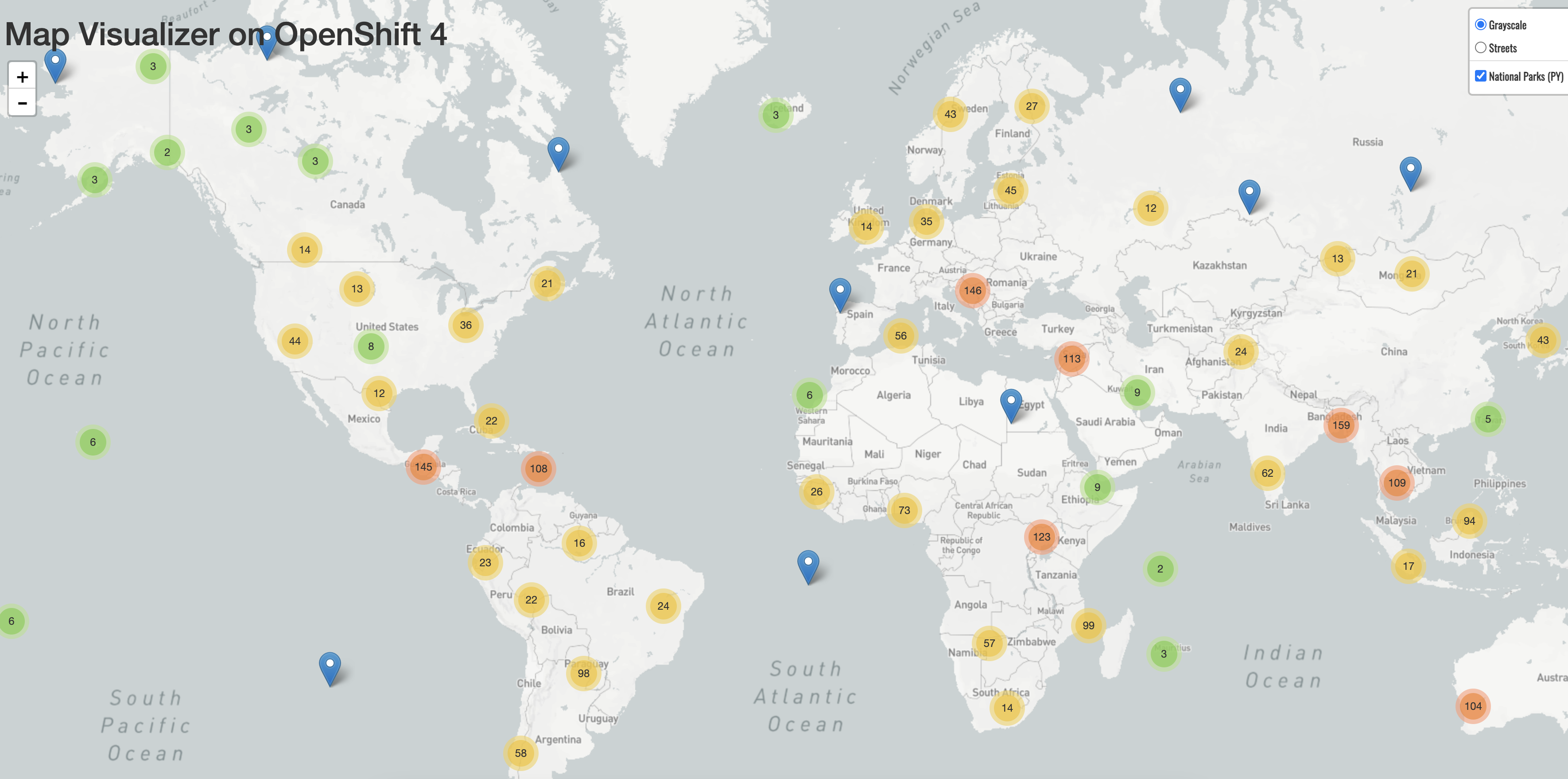
To learn how to stand up an application on OpenShift Container Platform by using the OpenShift CLI (oc), follow the provided tutorial. In this tutorial, you will deploy the services that are required for an application that displays a map of national parks across the world.
To complete this tutorial, you will perform the following steps:
- Create a project for the application. This step allows your application to be isolated from other cluster user’s workloads.
- Grant view permissions.
This step grants
viewpermissions to interact with the OpenShift API to help discover services and other resources running within the project. - Deploy the front-end application.
This step deploys the
parksmapfront-end application, exposes it externally, and scales it up to two instances. - Deploy the back-end application.
This step deploys the
nationalparksback-end application and exposes it externally. - Deploy the database application.
This step deploys the
mongodb-nationalparksMongoDB database, loads data into the database, and sets up the necessary credentials to access the database.
After you complete these steps, you can view the national parks application in a web browser.
Prerequisites
Before you start this tutorial, ensure that you have the following required prerequisites:
-
You have installed the OpenShift CLI (
oc). -
You have access to a test OpenShift Container Platform cluster. If your organization does not have a cluster to test on, you can request access to the Developer Sandbox to get a trial of OpenShift Container Platform.
-
You have the appropriate permissions, such as the
cluster-admincluster role, to create a project and applications within it. If you do not have the required permissions, contact your cluster administrator. You need theself-provisionerrole to create a project and theadminrole on the project to modify resources in that project.If you are using Developer Sandbox, a project is created for you with the required permissions.
-
You have logged in to your cluster by using the OpenShift CLI (
oc).
Create a project
Create a new project to contain all required resources and application components for the tutorial.
A project enables a community of users to organize and manage their content in isolation. Projects are OpenShift Container Platform extensions to Kubernetes namespaces. Projects have additional features that enable user self-provisioning. Each project has its own set of objects, policies, constraints, and service accounts.
Cluster administrators can allow developers to create their own projects. In most cases, you automatically have access to your own projects. Administrators can grant access to other projects as needed.
This procedure creates a new project called user-getting-started. You will use this project throughout the rest of this tutorial.
If you are using Developer Sandbox to complete this tutorial, skip this procedure. A project has already been created for you.
Prerequisites
- You have logged in to the OpenShift CLI (
oc).
Procedure
-
Create a project by running the following command:
$ oc new-project user-getting-startedExample outputNow using project "user-getting-started" on server "https://openshift.example.com:6443"....
Additional resources
Grant view permissions
Configure the necessary permissions for the application to access the required cluster resources.
OpenShift Container Platform automatically creates several service accounts in every project. The default service account takes responsibility for running the pods. OpenShift Container Platform uses and injects this service account into every pod that launches.
By default, the default service account has limited permissions to interact with the OpenShift API.
As a requirement of the application, you must assign the view role to the default service account to allow it to communicate with the OpenShift API to learn about pods, services, and resources within the project.
Prerequisites
- You have access to an OpenShift Container Platform cluster.
- You have installed the OpenShift CLI (
oc). - You have
cluster-adminor project-leveladminprivileges.
Procedure
-
Add the
viewrole to thedefaultservice account in theuser-getting-startedproject by running the following command:$ oc adm policy add-role-to-user view -z default -n user-getting-startedwarningIf you are using a different project, replace
user-getting-startedwith the name of your project.
Additional resources
Deploy the front-end application
Deploy the front-end application that provides the external-facing web component for the tutorial.
The simplest way to deploy an application in OpenShift Container Platform is to run a provided container image.
The following procedure deploys parksmap, which is the front-end component of the national-parks-app application. The web application displays an interactive map of the locations of national parks across the world.
Prerequisites
- You have access to an OpenShift Container Platform cluster.
- You have installed the OpenShift CLI (
oc).
Procedure
-
Deploy the
parksmapapplication by running the following command:$ oc new-app quay.io/openshiftroadshow/parksmap:latest --name=parksmap -l 'app=national-parks-app,component=parksmap,role=frontend,app.kubernetes.io/part-of=national-parks-app'Example output--> Found container image 0c2f55f (4 years old) from quay.io for "quay.io/openshiftroadshow/parksmap:latest"* An image stream tag will be created as "parksmap:latest" that will track this image--> Creating resources with label app=national-parks-app,app.kubernetes.io/part-of=national-parks-app,component=parksmap,role=frontend ...imagestream.image.openshift.io "parksmap" createddeployment.apps "parksmap" createdservice "parksmap" created--> SuccessApplication is not exposed. You can expose services to the outside world by executing one or more of the commands below:'oc expose service/parksmap'Run 'oc status' to view your app.
Additional resources
Expose the front-end service
By default, services running on OpenShift Container Platform are not accessible externally. To expose your service so that external clients can access it, you can create a route.
A Route object is a OpenShift Container Platform networking resource similar to a Kubernetes Ingress object. The default OpenShift Container Platform router (HAProxy) uses the HTTP header of the incoming request to determine where to proxy the connection.
Optionally, you can define security, such as TLS, for the route.
Prerequisites
- You have deployed the
parksmapfront-end application. - You have
cluster-adminor project-leveladminprivileges.
Procedure
- Create a route to expose the
parksmapfront-end application by running the following command:$ oc create route edge parksmap --service=parksmap
Verification
-
Verify that the application route was successfully created by running the following command:
$ oc get route parksmapExample outputNAME HOST/PORT PATH SERVICES PORT TERMINATION WILDCARDparksmap parksmap-user-getting-started.apps.cluster.example.com parksmap 8080-tcp edge None
Additional resources
View pod details
Retrieve detailed pod information to confirm the running status and resource configuration of the applications in this tutorial.
OpenShift Container Platform uses the Kubernetes concept of a pod, which is one or more containers deployed together on one host, and the smallest compute unit that can be defined, deployed, and managed. Pods are the rough equivalent of a machine instance, physical or virtual, to a container.
You can view the pods in your cluster and to determine the health of those pods and the cluster as a whole.
Prerequisites
- You have deployed the
parksmapfront-end application.
Procedure
-
List all pods in the current project by running the following command:
$ oc get podsExample outputNAME READY STATUS RESTARTS AGEparksmap-5f9579955-6sng8 1/1 Running 0 77s -
Show details for a pod by running the following command:
$ oc describe pod parksmap-5f9579955-6sng8Example outputName: parksmap-5f9579955-6sng8Namespace: user-getting-startedPriority: 0Service Account: defaultNode: ci-ln-fr1rt92-72292-4fzf9-worker-a-g9g7c/10.0.128.4Start Time: Wed, 26 Mar 2025 14:03:19 -0400Labels: app=national-parks-appapp.kubernetes.io/part-of=national-parks-appcomponent=parksmapdeployment=parksmappod-template-hash=848bd4954brole=frontend... -
View logs for a pod by running the following command:
$ oc logs parksmap-5f9579955-6sng8Example output...2025-03-26 18:03:24.774 INFO 1 --- [ main] o.s.m.s.b.SimpleBrokerMessageHandler : Started.2025-03-26 18:03:24.798 INFO 1 --- [ main] s.b.c.e.t.TomcatEmbeddedServletContainer : Tomcat started on port(s): 8080 (http)2025-03-26 18:03:24.801 INFO 1 --- [ main] c.o.evg.roadshow.ParksMapApplication : Started ParksMapApplication in 4.053 seconds (JVM running for 4.46)
Additional resources
Scale up the deployment
Scale the application deployment up or down to meet workload demands.
In Kubernetes, a Deployment object defines how an application deploys. In most cases when you deploy an application, OpenShift Container Platform creates the Pod, Service, ReplicaSet, and Deployment resources for you.
When you deploy the parksmap image, a deployment resource is created. In this example, only one pod is deployed. You might want to scale up your application to keep up with user demand or to ensure that your application is always running even if one pod is down.
The following procedure scales the parksmap deployment to use two instances.
Prerequisites
- You have deployed the
parksmapfront-end application.
Procedure
-
Scale your deployment from one pod instance to two pod instances by running the following command:
$ oc scale --replicas=2 deployment/parksmapExample outputdeployment.apps/parksmap scaled
Verification
-
Verify that your deployment scaled up properly by running the following command:
$ oc get podsExample outputNAME READY STATUS RESTARTS AGEparksmap-5f9579955-6sng8 1/1 Running 0 7m39sparksmap-5f9579955-8tgft 1/1 Running 0 24sVerify that two
parksmappods are listed.tipTo scale your deployment back down to one pod instance, pass in
1to the--replicasoption:$ oc scale --replicas=1 deployment/parksmap
Additional resources
Deploy the back-end application
Deploy the back-end application that provides the service that queries the database to return the national park data required for your application.
The following procedure deploys nationalparks, which is the back-end component for the national-parks-app application. The Python application performs 2D geo-spatial queries against a MongoDB database to locate and return map coordinates of all national parks in the world.
Prerequisites
- You have deployed the
parksmapfront-end application.
Procedure
-
Create the
nationalparksback-end application by running the following command:$ oc new-app https://github.com/openshift-roadshow/nationalparks-py.git --name nationalparks -l 'app=national-parks-app,component=nationalparks,role=backend,app.kubernetes.io/part-of=national-parks-app,app.kubernetes.io/name=python' --allow-missing-images=trueExample output--> Found image 9531750 (2 weeks old) in image stream "openshift/python" under tag "3.11-ubi8" for "python"Python 3.11-----------...--> Creating resources with label app=national-parks-app,app.kubernetes.io/name=python,app.kubernetes.io/part-of=national-parks-app,component=nationalparks,role=backend ...imagestream.image.openshift.io "nationalparks" createdbuildconfig.build.openshift.io "nationalparks" createddeployment.apps "nationalparks" createdservice "nationalparks" created--> SuccessBuild scheduled, use 'oc logs -f buildconfig/nationalparks' to track its progress.Application is not exposed. You can expose services to the outside world by executing one or more of the commands below:'oc expose service/nationalparks'Run 'oc status' to view your app.
Expose the back-end service
To expose the back-end service so that it is accessible externally, create a route.
Prerequisites
- You have deployed the
nationalparksback-end application. - You have
cluster-adminor project-leveladminprivileges.
Procedure
-
Create a route to expose the
nationalparksback-end application by running the following command:$ oc create route edge nationalparks --service=nationalparks -
Label the
nationalparksroute by running the following command:$ oc label route nationalparks type=parksmap-backendThe application code expects the
nationalparksroute to be labeled withtype=parksmap-backend.
Additional resources
Deploy the database application
Deploy a MongoDB database application to contain the information that your application requires. For this tutorial, you will deploy a database application called mongodb-nationalparks that holds the national park location information.
Prerequisites
- You have deployed the
parksmapfront-end application. - You have deployed the
nationalparksback-end application.
Procedure
-
Deploy the
mongodb-nationalparksdatabase application by running the following command:$ oc new-app registry.redhat.io/rhmap47/mongodb --name mongodb-nationalparks -e MONGODB_USER=mongodb -e MONGODB_PASSWORD=mongodb -e MONGODB_DATABASE=mongodb -e MONGODB_ADMIN_PASSWORD=mongodb -l 'app.kubernetes.io/part-of=national-parks-app,app.kubernetes.io/name=mongodb'Example output--> Found container image 7a61087 (12 days old) from quay.io for "quay.io/mongodb/mongodb-enterprise-server"* An image stream tag will be created as "mongodb-nationalparks:latest" that will track this image--> Creating resources with label app.kubernetes.io/name=mongodb,app.kubernetes.io/part-of=national-parks-app ...imagestream.image.openshift.io "mongodb-nationalparks" createddeployment.apps "mongodb-nationalparks" createdservice "mongodb-nationalparks" created--> SuccessApplication is not exposed. You can expose services to the outside world by executing one or more of the commands below:'oc expose service/mongodb-nationalparks'Run 'oc status' to view your app.
Provide access to the database by creating a secret
Create a Secret resource to securely provide the back-end application with the sensitive database connection credentials.
The nationalparks application needs information, such as the database name, username, and passwords, to access the MongoDB database. However, because this information is sensitive, you should not store it directly in the pod.
You can use a secret to store sensitive information, and share that secret with workloads.
Secret objects provide a mechanism to hold sensitive information such as passwords, OpenShift Container Platform client configuration files, and private source repository credentials. Secrets decouple sensitive content from the pods. You can mount secrets into containers by using a volume plugin or by passing the secret in as an environment variable. The system can then use secrets to provide the pod with the sensitive information.
The following procedure creates the nationalparks-mongodb-parameters secret and mounts it to the nationalparks workload.
Prerequisites
- You have deployed the
nationalparksback-end application. - You have deployed the
mongodb-nationalparksdatabase application.
Procedure
-
Create the secret with the required database access information by running the following command:
$ oc create secret generic nationalparks-mongodb-parameters --from-literal=DATABASE_SERVICE_NAME=mongodb-nationalparks --from-literal=MONGODB_USER=mongodb --from-literal=MONGODB_PASSWORD=mongodb --from-literal=MONGODB_DATABASE=mongodb --from-literal=MONGODB_ADMIN_PASSWORD=mongodb -
Import the environment from the secret to the
nationalparksworkload by running the following command:$ oc set env --from=secret/nationalparks-mongodb-parameters deploy/nationalparks -
Wait for the
nationalparksdeployment to roll out a new revision with this environment information. Check the status of thenationalparksdeployment by running the following command:$ oc rollout status deployment nationalparksExample outputdeployment "nationalparks" successfully rolled out
Additional resources
Load data into the database
After you have deployed the mongodb-nationalparks database application, load the national park location information into the database.
Prerequisites
- You have deployed the
nationalparksback-end application. - You have deployed the
mongodb-nationalparksdatabase application.
Procedure
-
Load the national parks data by running the following command:
$ oc exec $(oc get pods -l component=nationalparks | tail -n 1 | awk '{print $1;}') -- curl -s http://localhost:8080/ws/data/loadExample output"Items inserted in database: 2893"
Verification
-
Verify that the map data was loaded properly by running the following command:
$ oc exec $(oc get pods -l component=nationalparks | tail -n 1 | awk '{print $1;}') -- curl -s http://localhost:8080/ws/data/allExample output (trimmed)..., {"id": "Great Zimbabwe", "latitude": "-20.2674635", "longitude": "30.9337986", "name": "Great Zimbabwe"}]
Additional resources
View the application in a web browser
After you have deployed the necessary applications and loaded data into the database, you are now ready view your application through a browser. You can get the URL for the application by retrieving the route information for the front-end application.
Prerequisites
- You have deployed the
parksmapfront-end application. - You have deployed the
nationalparksback-end application. - You have deployed the
mongodb-nationalparksdatabase application. - You have loaded the data into the
mongodb-nationalparksdatabase.
Procedure
-
Get your route information to retrieve your map application URL by running the following command:
$ oc get route parksmapExample outputNAME HOST/PORT PATH SERVICES PORT TERMINATION WILDCARDparksmap parksmap-user-getting-started.apps.cluster.example.com parksmap 8080-tcp edge None -
From the above output, copy the value in the
HOST/PORTcolumn. -
Add
https://in front of the copied value to get the application URL. This is necessary because the route is a secured route.Example application URLhttps://parksmap-user-getting-started.apps.cluster.example.com -
Paste this application URL into your web browser. Your browser should display a map of the national parks across the world. Figure 1. National parks across the world
If you allow the application to access your location, the map will center on your location.